


 Call us:
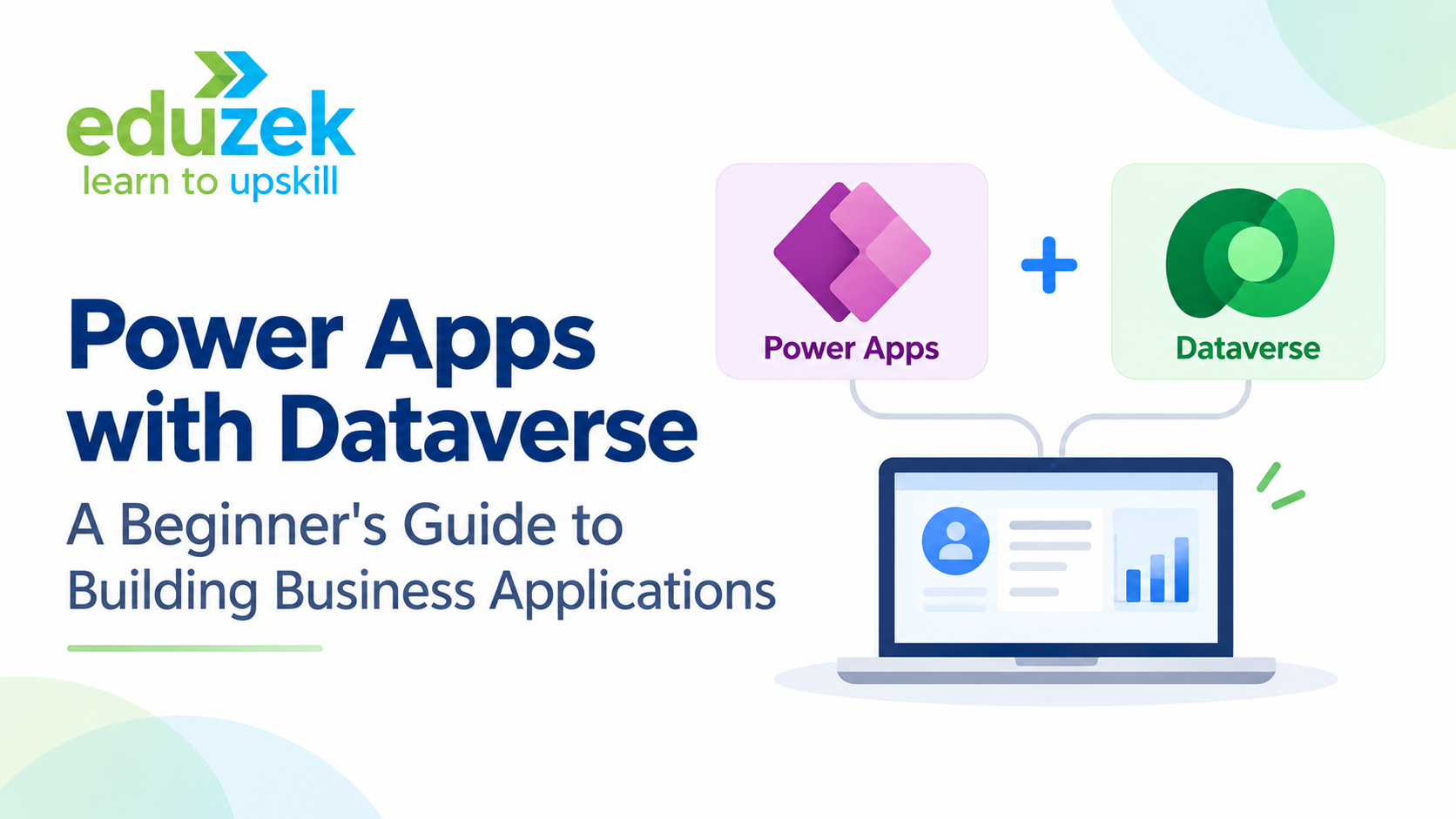
Power Apps with Dataverse: A Beginner's Guide to Building Business Applications
Power Apps with Dataverse: A Beginner's Guide to Building Business Applications
Introduction
Modern businesses rely on data to manage employees, customers, projects, inventory, approvals, operations and daily activities. However, many organisations still use spreadsheets, disconnected applications, email threads and manual processes to manage critical business information.
As businesses grow, these methods can become difficult to maintain. Data may be duplicated, updates may be missed, reporting may become inconsistent, and employees may spend too much time searching for information or performing repetitive tasks.
This is where Microsoft Power Apps and Dataverse become valuable.
Power Apps enables businesses to build custom applications with a low-code development approach, while Microsoft Dataverse provides a structured data platform for storing and managing business information. Together, they help organisations develop applications that support business processes, improve productivity and reduce dependency on manual workflows.
For anyone learning Power Apps development, understanding Dataverse is an important step toward building applications beyond simple forms and spreadsheet-based solutions.
In this guide, we will explore Power Apps with Dataverse, including tables, columns, relationships, data types, security, application integration, practical examples and the difference between Dataverse and SharePoint Lists.
1. What Is Microsoft Dataverse?
Microsoft Dataverse is a cloud-based data platform that allows organisations to securely store, manage and organise business data.
It provides a structured environment where information can be stored in tables, connected through relationships, managed using business rules and accessed by applications built using Microsoft Power Platform.
Instead of storing all business information in separate spreadsheets, Dataverse allows developers to create a centralised data structure that applications can use.
For example, a company may need applications for:
- Employee management
- Customer relationship management
- Leave management
- Project tracking
- Sales management
- Inventory management
- Expense reimbursement
- Service requests
- Vendor management
These applications may use related information. An employee may belong to a department, submit leave requests, manage assets and participate in projects. Dataverse makes it possible to organise this information into connected data structures.
Key capabilities of Dataverse
Dataverse provides several capabilities that make it suitable for business applications:
- Structured data storage using tables and columns
- Relationships between different tables
- Business rules and data validation
- Security roles and access control
- Integration with Power Apps
- Integration with Power Automate
- Support for business logic
- Data management and administration capabilities
- Integration with other Microsoft and external systems through connectors and APIs
Dataverse is particularly useful when applications require structured data, relationships, controlled access and business logic.
2. Why Business Applications Need Structured Data
Before learning Dataverse, it is important to understand why structured data matters.
Imagine a company managing 500 employees using multiple Excel files. One spreadsheet contains employee details, another contains leave records, and another contains department information.
Over time, several problems may occur:
- Employee information is duplicated.
- Different files contain inconsistent information.
- Department names are entered differently.
- Managers cannot easily see their team's leave requests.
- Reporting requires manually combining data.
- Important records may be accidentally deleted.
- Access to sensitive information may be difficult to control.
A structured data system helps address these challenges.
Structured data vs unstructured spreadsheets
| Spreadsheet-based approach | Structured Dataverse approach |
| Data may be stored in multiple files | Data can be organised into related tables |
| Duplicate information is common | Relationships can reduce unnecessary duplication |
| Validation is often limited | Data types and business rules support validation |
| Access control may be difficult to manage | Security roles provide controlled access |
| Reporting may require manual consolidation | Connected data supports application reporting |
| Processes depend on manual updates | Applications and automation can manage workflows |
For example, instead of entering the employee's department name in every leave request, the application can refer to a Department record.
This improves data consistency and makes application development more manageable.
3. Understanding Dataverse Tables
Tables are one of the most important concepts in Dataverse.
A table stores a collection of records belonging to a particular category of information. It is similar to a database table containing rows and columns.
For example, an Employee table stores information about employees.
Example: Employee table
| Employee ID | Employee Name | Department | Designation | |
| EMP001 | Rahul Sharma | IT | rahul@example.com | Developer |
| EMP002 | Priya Mehta | HR | priya@example.com | HR Executive |
| EMP003 | Amit Kumar | Finance | amit@example.com | Analyst |
In this example:
- Each row represents an employee record.
- Each column represents a specific attribute.
- The table stores employee-related information.
Dataverse tables can be used to organise information such as employees, departments, projects, customers, leave requests, assets and expenses.
Types of tables
Dataverse includes different types of tables, with standard and custom tables being particularly relevant to application developers.
Standard tables: These are predefined tables available within Dataverse for commonly used business concepts.
Custom tables: These are tables created by developers or application makers to meet specific business requirements.
For example, if an organisation needs to manage employee training registrations, it can create a custom Training Registration table.
When should you create a new table?
A new table should generally be created when you need to manage a distinct category of information with its own records, attributes, relationships or business rules.
Examples include:
- Employee
- Department
- Leave Request
- Project
- Training Course
- Expense Claim
- Customer Complaint
Proper table design is an important part of developing scalable Power Apps solutions.
4. Understanding Columns in Dataverse
Columns define the information stored within a table.
Every table contains columns that describe its records. When creating a table, developers decide what information needs to be stored and choose appropriate column types.
For example, an Employee table may contain:
| Column Name | Purpose |
| Employee Name | Stores the employee's name |
| Employee ID | Stores the employee identification number |
| Stores the employee's email address | |
| Joining Date | Stores the employee's joining date |
| Salary | Stores salary-related information where required and appropriately secured |
| Department | Identifies the employee's department |
| Is Active | Indicates whether the employee is currently active |
Common Dataverse column types
Text
Used to store names, descriptions, email addresses, codes and other textual information.
Examples:
- Employee Name
- Project Name
- Asset Code
- Comments
Whole Number
Used for values that do not require decimal places.
Examples:
- Number of Employees
- Quantity
- Number of Days
Decimal Number
Used for numerical values that may require decimal precision.
Examples:
- Measurements
- Quantities requiring fractional values
- Certain calculated business values
Currency
Used for monetary values.
Examples:
- Expense Amount
- Purchase Price
- Budget
Date and Time
Used to store dates and timestamps.
Examples:
- Joining Date
- Request Date
- Approval Date
- Project Deadline
Choice
Used when a field should contain values selected from a predefined list.
Examples:
- Leave Type: Casual, Sick, Annual
- Status: Pending, Approved, Rejected
- Priority: Low, Medium, High
Yes/No
Used for Boolean-type values.
Examples:
- Is Active
- Is Approved
- Requires Review
Lookup
Used to reference a record from another table.
For example, the Department column in the Employee table can reference a Department table instead of storing the department name as plain text.
Choosing the correct column type improves data quality and makes application logic easier to develop.
5. Understanding Relationships Between Dataverse Tables
Business applications rarely work with only one table.
Employee management systems, CRM applications, inventory systems and project management applications require information from multiple tables.
Relationships connect tables and help applications retrieve related information.
One-to-many relationship
A one-to-many relationship occurs when one record in a table can be associated with multiple records in another table.
Example:
One department can have many employees.
Department → Employees
| Department | Employees |
| IT | Rahul, Amit, Kiran |
| HR | Priya, Neha |
| Finance | Rohan, Sneha |
The Department table contains department information, while the Employee table contains individual employee records.
Instead of repeatedly storing department details, each employee can reference the relevant department record.
Many-to-one relationship
From the employee's perspective, many employees may belong to one department.
For example:
- Rahul belongs to IT.
- Amit belongs to IT.
- Kiran belongs to IT.
Each employee has a department reference, but multiple employees can reference the same department.
Many-to-many relationship
A many-to-many relationship occurs when multiple records in one table can be associated with multiple records in another table.
Example:
Employees and training courses.
- One employee may attend multiple courses.
- One course may have multiple employees enrolled.
This relationship can be useful for:
- Training management
- Project assignments
- Skill tracking
- Team membership
- Product categorisation
Why relationships matter
Relationships help:
- Reduce duplicate information.
- Maintain consistency.
- Create connected applications.
- Retrieve related records.
- Build more organised business data models.
- Support reporting and business processes.
Understanding relationships is an essential skill for Power Apps developers working with Dataverse.
6. Understanding Data Types and Choices
Data types determine what kind of information a column can store.
Selecting the correct data type helps maintain data quality and improves application usability.
For example, storing a joining date as text can create problems when sorting, filtering or calculating employee tenure. A proper Date column makes these operations more reliable.
Example: Leave Request table
| Column | Data Type |
| Leave Request Number | Text or suitable identifier |
| Employee | Lookup |
| Leave Type | Choice |
| Start Date | Date |
| End Date | Date |
| Total Days | Number |
| Reason | Text |
| Status | Choice |
Why Choice columns are useful
Instead of allowing users to type any status, you can create a predefined list:
- Draft
- Submitted
- Pending Approval
- Approved
- Rejected
- Cancelled
This avoids inconsistent values such as:
- Approve
- Approved
- Approval Done
- Yes
Using predefined choices makes filtering, reporting and automation more reliable.
Tips for designing data types
- Use Date columns for dates rather than text.
- Use Choice columns for predefined categories.
- Use Lookup columns when connecting related tables.
- Use Currency columns for monetary values.
- Use Yes/No columns for simple Boolean conditions.
- Avoid creating unnecessary columns.
- Choose clear and consistent column names.
Good data modelling begins before the application interface is designed.
7. Creating a Basic Data Model in Dataverse
A data model defines how information is organised within an application. Before building screens in Power Apps, developers should identify the information the application needs to store and how different records are connected.
Let's understand this with an Employee Management Application.
Step 1: Identify the business requirements
Suppose an organisation wants to create an application to manage employees, departments and leave requests.
The application should allow users to:
- View employee details.
- Add new employees.
- Assign employees to departments.
- Submit leave requests.
- View leave request status.
- Allow managers to approve or reject leave requests.
Step 2: Identify the required tables
Based on these requirements, we can create three tables:
Employee Table
Stores employee details.
Department Table
Stores department information.
Leave Request Table
Stores employee leave requests and approval information.
Step 3: Define the columns
Employee Table
| Column | Data Type |
| Employee Name | Text |
| Employee ID | Text |
| Email or text | |
| Joining Date | Date |
| Designation | Text |
| Department | Lookup |
Department Table
| Column | Data Type |
| Department Name | Text |
| Department Code | Text |
| Department Head | Lookup to Employee, if required |
Leave Request Table
| Column | Data Type |
| Employee | Lookup |
| Leave Type | Choice |
| Start Date | Date |
| End Date | Date |
| Reason | Text |
| Status | Choice |
| Approver | Lookup, where required |
Step 4: Create table relationships
Now establish relationships between these tables.
- One Department can have multiple Employees.
- One Employee can submit multiple Leave Requests.
- One Employee can be associated with multiple leave requests as an approver, depending on the application design.
The resulting data model might look like this:
Employee Management Data Model
Department
Department Name · Department Code
1 ──────── Many
Employee
Name · Employee ID · Email · Joining Date
1 ──────── Many
Leave Request
Leave Type · Dates · Reason · Status
This data model provides a foundation for building an employee application.
Step 5: Validate the data model
Before building the application, check whether:
- All required business information is captured.
- Duplicate fields have been avoided.
- Relationships are correctly defined.
- Data types are appropriate.
- Choice values are meaningful.
- Sensitive information is identified.
- Future requirements have been considered.
Planning the data model properly can reduce application redesign and improve maintainability.
8. Connecting Dataverse to Canvas Apps
Canvas Apps allow developers to design applications with flexible layouts and user interfaces.
Developers can control screen layout, colours, navigation, buttons, forms, galleries and user interactions.
Dataverse can be used as the data source for a Canvas App, allowing the application to read, create, update and delete records based on the user's permissions and the application's design.
How to connect Dataverse to a Canvas App
The general process involves:
- Open Power Apps.
- Create a new Canvas App.
- Choose an appropriate layout, such as phone or tablet.
- Open the Data panel.
- Add a data source.
- Select Dataverse.
- Choose the required tables.
- Build screens using controls, forms and galleries.
- Configure formulas to retrieve and manage records.
Example: Employee directory application
You can build an Employee Directory Canvas App with the following screens:
Screen 1: Home Screen
Displays the application title, navigation buttons and summary information.
Screen 2: Employee List
Displays employees using a gallery.
Screen 3: Employee Details
Shows the selected employee's information.
Screen 4: Add Employee
Allows users to create a new employee record.
Screen 5: Edit Employee
Allows authorised users to update employee details.
Using galleries
A gallery displays a collection of records.
For example, an Employee Gallery can display:
- Employee Name
- Designation
- Department
Users can select an employee to view more information.
Using forms
Forms simplify record creation and editing.
Power Apps forms can be connected to Dataverse tables and configured to display selected fields. They help developers manage data entry without manually creating every input control and saving operation.
Canvas Apps are useful when you want to create a highly customised user experience for specific business requirements.
9. Using Dataverse with Model-driven Apps
Model-driven Apps are another important application type in Power Apps.
Unlike Canvas Apps, where the developer controls the interface layout more directly, Model-driven Apps are built around the data model, tables, relationships, forms, views and business processes.
Dataverse is central to Model-driven Apps.
How Model-driven Apps work
Developers create tables and configure the data structure first. They then design the application by selecting tables, forms, views, dashboards and other components.
The platform generates much of the interface based on the data model and configuration.
Key components of Model-driven Apps
Tables
Store business information.
Forms
Allow users to view and edit records.
Views
Display filtered collections of records.
Dashboards
Present information and business metrics.
Business Process Flows
Guide users through defined business stages when appropriate.
Example: Employee Management Model-driven App
A company may build a Model-driven App with:
- Employee records.
- Department records.
- Leave request records.
- Employee forms.
- Department views.
- Leave approval views.
- Dashboards showing leave statistics.
Users can navigate between related records and manage business information within a structured application.
Canvas Apps vs Model-driven Apps with Dataverse
| Feature | Canvas Apps | Model-driven Apps |
| Interface design | Highly customisable | Data-driven interface |
| Data source | Multiple supported data sources | Primarily Dataverse |
| Layout | Developer-designed | Based on app components and configuration |
| Development approach | Screen and control-focused | Data model and component-focused |
| Best suited for | Tailored user experiences | Structured business applications |
| Dataverse integration | Optional, depending on solution | Core platform requirement |
Understanding both approaches helps developers choose the right application architecture for different business requirements.
10. Dataverse Security Roles and Permissions
Business applications often contain sensitive information. An employee application may store personal details, leave records, department information or other business data that should not be accessible to every user.
Dataverse provides security capabilities to control access to business information.
What are security roles?
Security roles define the permissions users have within Dataverse.
Depending on the configuration, security roles can control whether users are allowed to:
- Read records.
- Create records.
- Update records.
- Delete records.
- Assign records.
- Share records.
- Perform other supported operations.
Example: Employee Leave Management
Consider a leave management application with three user groups.
| User Role | Access Requirement |
| Employee | Create leave requests and view permitted records |
| Manager | Review and approve relevant leave requests |
| HR Administrator | Manage employee and leave records based on assigned permissions |
The security design should ensure employees cannot access information beyond what they are authorised to see.
Understanding access levels
Dataverse permissions can be configured at different levels, depending on the security model and environment configuration.
These may include:
- User-level access
- Business-unit-level access
- Organisation-level access
- Other access granted through ownership, sharing or related security mechanisms
Why security is important
Security is not simply about hiding a screen or disabling a button.
Developers must understand the difference between application interface restrictions and actual data permissions. Hiding a button in Power Apps does not replace Dataverse security controls.
A secure application should consider:
- Who can access each table?
- Who can create or modify records?
- Which records should users be able to view?
- Are sensitive fields appropriately protected?
- Do users need different permissions based on their roles?
- Are permissions configured according to organisational requirements?
Learning Dataverse security is essential for developing business applications that handle real organisational data.
11. Dataverse vs SharePoint Lists: Which Should You Use?
One of the common questions beginners ask is whether they should use Dataverse or SharePoint Lists as the data source for Power Apps.
Both can support business applications, but they have different strengths and design considerations.
What is SharePoint Lists?
SharePoint Lists are structured collections of information stored in SharePoint. They can be used to manage tasks, requests, inventory, employee information, project details and other business records.
SharePoint Lists can connect with Power Apps and Power Automate, making them useful for many Microsoft 365 business solutions.
Dataverse vs SharePoint Lists comparison
| Feature | Dataverse | SharePoint Lists |
| Data structure | Relational data platform | List-based structure |
| Relationships | Supports rich relationships between tables | Supports lookup columns and list relationships with different capabilities |
| Business applications | Suitable for structured business applications | Suitable for many lightweight and departmental applications |
| Security | Role-based security and other data access controls | SharePoint site, list and item-level permissions, subject to configuration |
| Data modelling | Strong relational modelling capabilities | Simpler list-oriented modelling |
| Application type | Canvas and Model-driven Apps | Commonly used with Canvas Apps |
| Business logic | Supports business rules and other platform capabilities | Logic commonly implemented through Power Apps and Power Automate |
| Integration | Microsoft Power Platform and other integrations | Microsoft 365 and Power Platform integration |
| Complexity | More capabilities, with greater design and administration considerations | Often simpler to start with for basic solutions |
| Suitable use cases | Enterprise and relational business applications | Team-level apps and straightforward data management |
When should you use SharePoint Lists?
SharePoint Lists may be suitable when:
- You are building a simple departmental application.
- The data structure is relatively straightforward.
- You need a basic request management solution.
- Your application works with Microsoft 365 data.
- You want to create a lightweight application without complex relational requirements.
Examples:
- Simple task tracking.
- Basic feedback collection.
- Team request forms.
- Small departmental inventory tracking.
When should you use Dataverse?
Dataverse may be a better fit when:
- The application has multiple related tables.
- The data model is more complex.
- You require Model-driven Apps.
- You need more sophisticated security configuration.
- You are building a business application that may grow.
- You need a more structured data management approach.
- The application requires platform capabilities that align with Dataverse.
Examples:
- Employee management systems.
- Customer management applications.
- Project management solutions.
- Asset management systems.
- Multi-department business applications.
Is Dataverse always better than SharePoint?
Not necessarily.
The right choice depends on the application's complexity, business requirements, licensing, data architecture, security needs, expected scale, integration requirements and administration capabilities.
A simple application may work perfectly well with SharePoint Lists. A complex relational application may benefit from Dataverse.
Power Apps developers should learn how to evaluate both options instead of choosing a data source based on habit.
12. Practical Example: Building an Employee Management Application with Dataverse
To understand how Power Apps with Dataverse works in a real scenario, let's consider an Employee Management Application.
Business problem
A company currently manages employee information using Excel spreadsheets and email communication.
HR employees face challenges such as:
- Difficulty maintaining updated employee information.
- Duplicate employee records.
- Difficulty searching for employees.
- Manual department assignments.
- Limited visibility into employee requests.
- Time-consuming reporting.
The organisation wants to develop an application that centralises employee information and simplifies employee management.
Application objectives
The application should allow authorised users to:
- Add employees.
- View employee records.
- Update employee information.
- Search employees.
- Filter employees by department.
- Manage department records.
- Submit leave requests.
- Track leave request status.
- Review relevant employee information.
Step 1: Create the Employee table
Create a Dataverse table called Employee.
Suggested columns:
| Column Name | Data Type |
| Employee Name | Text |
| Employee ID | Text |
| Email or text | |
| Phone Number | Phone or text |
| Joining Date | Date |
| Designation | Text |
| Department | Lookup |
| Employee Status | Choice |
Step 2: Create the Department table
Create a Department table with:
| Column Name | Data Type |
| Department Name | Text |
| Department Code | Text |
| Department Description | Text |
Connect the Employee table to the Department table through a lookup relationship.
Step 3: Create the Leave Request table
Create a Leave Request table containing:
| Column Name | Data Type |
| Employee | Lookup |
| Leave Type | Choice |
| Start Date | Date |
| End Date | Date |
| Reason | Text |
| Status | Choice |
| Approver | Lookup, where required |
Step 4: Build the Canvas App
Create a Canvas App connected to the Dataverse tables.
The application can include the following screens.
Home Screen
Displays navigation buttons and key summary information.
Employee Directory
Displays employees in a gallery. Users can search and filter records.
Employee Details Screen
Displays selected employee information.
Add Employee Screen
Allows authorised users to enter employee details and create a record.
Edit Employee Screen
Allows authorised users to modify employee information.
Leave Request Screen
Allows employees to submit leave requests and view the status of their requests.
Step 5: Add search and filtering functionality
Developers can use Power Fx to implement search and filtering features.
For example, a search box can be used to filter employees by name.
A simple formula might look like:
Filter(
Employees,
StartsWith('Employee Name', txtSearch.Text)
)
This is an illustrative example. Actual formula syntax may depend on the table name, column names, control names and application configuration. Delegation support should also be considered when working with larger datasets.
Step 6: Add employee record creation
A form can be connected to the Employee table and configured to create new records.
Developers can use form controls to capture employee information and submit the record using the appropriate form functions.
For example:
SubmitForm(frmEmployee)
The form should be configured with the correct data source and mode before using the formula.
Step 7: Add navigation
The application can contain buttons that navigate between screens.
For example:
Navigate(scrEmployeeList)
When the user selects the Employee Directory button, the application can navigate to the employee list screen.
Step 8: Add Power Automate integration
Power Automate can extend the application by automating business processes.
For example, when a leave request is submitted:
- A leave request record is created.
- An approval workflow is triggered.
- The manager receives an approval request.
- The manager approves or rejects the request.
- The request status is updated.
- The employee receives a notification.
This integration can reduce manual communication and improve process visibility.
Step 9: Configure security
Configure access based on the application's business requirements.
For example:
- Employees can create leave requests.
- Managers can review requests they are authorised to approve.
- HR administrators can manage relevant employee records.
Access should be implemented through appropriate Dataverse security configuration and application design, rather than relying only on screen visibility.
Step 10: Test and publish
Before making the application available:
- Test record creation.
- Test record editing.
- Test search and filtering.
- Verify relationships.
- Test navigation.
- Validate security permissions.
- Check error handling.
- Test approval workflows.
- Confirm the application works across intended devices.
- Publish the application after validation.
This project demonstrates how Dataverse, Canvas Apps, Power Fx and Power Automate can work together to create a useful business application.
13. Common Beginner Mistakes When Learning Power Apps with Dataverse
Beginners often focus on building the application interface first and think about data structure later. However, data modelling is one of the most important parts of Power Apps development.
Here are some common mistakes and how to avoid them.
Mistake 1: Creating too many unnecessary tables
Creating a separate table for every small piece of information can make the application unnecessarily complicated.
How to avoid it: Identify the business entities and create tables based on actual requirements. Avoid overcomplicating the data model.
Mistake 2: Storing related information as plain text
For example, storing a department name as text in every employee record may result in inconsistent values.
One user may enter "IT", another may enter "Information Technology", and another may enter "Tech Department".
How to avoid it: Use Lookup columns when information should reference another table.
Mistake 3: Choosing incorrect data types
Storing dates as text or using free-text fields for statuses can create reporting and filtering problems.
How to avoid it: Choose appropriate data types such as Date, Number, Currency, Choice and Lookup based on the business requirement.
Mistake 4: Ignoring relationships
Developers may create tables but fail to connect them properly.
This can make it difficult to retrieve related information or build reports.
How to avoid it: Understand one-to-many and many-to-many relationships before designing the application.
Mistake 5: Ignoring security
A common mistake is assuming that hiding a screen or button means the data is secure.
How to avoid it: Learn Dataverse security roles, record access, permissions and how application access differs from data access.
Mistake 6: Building the application before understanding requirements
Developers sometimes begin adding screens without understanding how the business process works.
This can lead to unnecessary functionality, missing fields and incorrect workflows.
How to avoid it: Start by understanding the business problem, users, process steps, data requirements and access rules.
Mistake 7: Ignoring delegation
Power Apps may not be able to process every query locally when working with large datasets. Some operations may be delegated to the data source, while unsupported operations can result in incomplete results.
How to avoid it: Learn delegation concepts, review delegation warnings and design queries that work efficiently with the chosen data source.
Mistake 8: Not testing with realistic data
An application may appear to work with five records but behave differently with hundreds or thousands of records.
How to avoid it: Test with realistic data volumes, different user roles, incomplete records and unexpected inputs.
Mistake 9: Not understanding Dataverse licensing
Dataverse usage and application access can involve licensing requirements that vary by application, environment, users, connectors and capabilities.
How to avoid it: Check applicable Microsoft licensing requirements before developing or deploying a business solution.
14. What Should You Learn Next After Dataverse?
Learning Dataverse is an important milestone, but it is only one part of becoming a Power Apps developer.
To build complete business applications, you should progressively learn other Power Platform components.
1. Power Fx
Power Fx is the formula language used in Power Apps.
Learn:
- Variables.
- Collections.
- Conditional statements.
- Functions.
- Filtering.
- Sorting.
- Searching.
- Form validation.
- Error handling.
- Record manipulation.
Power Fx helps you implement application logic and control how your application behaves.
2. Canvas Apps
Learn how to create customised user interfaces using:
- Screens.
- Controls.
- Galleries.
- Forms.
- Buttons.
- Navigation.
- Layouts.
- Responsive design.
- Data connections.
3. Model-driven Apps
Learn how to build data-driven applications using:
- Tables.
- Forms.
- Views.
- Relationships.
- Dashboards.
- Business Process Flows.
4. Power Automate
Learn how to automate business processes using cloud flows.
Examples include:
- Sending notifications.
- Approval workflows.
- Updating records.
- Creating tasks.
- Processing business requests.
- Integrating with other applications.
5. Connectors and integrations
Learn how Power Apps connects with different data sources and services.
Examples include:
- Dataverse.
- SharePoint.
- Microsoft 365.
- Outlook.
- Teams.
- Other supported services and APIs.
6. Security and application management
Learn how to manage:
- Security roles.
- Permissions.
- Environments.
- Application sharing.
- Solutions.
- Application lifecycle management.
- Testing and deployment.
7. Practical projects
Build applications that solve real business problems.
Examples:
- Employee Management Application.
- Leave Management System.
- Inventory Management Application.
- Helpdesk Ticketing System.
- Expense Reimbursement Application.
- Customer Feedback Application.
Practical projects help you understand how individual concepts work together in a complete application.
15. How Structured Power Apps Training Can Help You Learn Dataverse
Dataverse can be challenging for beginners because it involves multiple concepts, including tables, relationships, data types, security, application development and integration.
While documentation and online tutorials are useful, learning these concepts in a structured sequence can make the process easier.
A structured Power Apps training program can help learners understand:
- How to design tables based on business requirements.
- How to create relationships between tables.
- How to select appropriate data types.
- How to connect Dataverse with Canvas Apps.
- How to build Model-driven Apps.
- How to implement Power Fx formulas.
- How to integrate applications with Power Automate.
- How to apply security and permissions.
- How to develop practical business applications.
For learners who want to develop these skills through guided learning and practical application, exploring a Power Apps and Power Automate training program in India can be a useful next step.
Working professionals who need to balance learning with their existing job responsibilities can also explore Power Apps courses online for working professionals to understand the available learning options.
The right learning approach should help you move from understanding individual concepts to building applications that solve actual business problems.
16. Who Should Learn Power Apps with Dataverse?
Learning Dataverse can be valuable for professionals who want to develop business applications and work with Microsoft Power Platform.
Beginners in low-code development
If you are new to application development, Dataverse helps you understand how business data is organised and connected.
Power Apps developers
Developers who already know Canvas Apps can improve their application design skills by learning structured data modelling and Dataverse integration.
Business analysts
Business analysts can benefit from understanding how business requirements translate into tables, relationships, application screens and workflows.
Microsoft 365 professionals
Professionals working with SharePoint, Microsoft 365 and business processes can expand their skills by learning Power Apps and Dataverse.
IT professionals
IT professionals who want to build internal applications, automate business processes or work with low-code development platforms can add Power Apps and Dataverse to their technical skill set.
Working professionals looking to upskill
Professionals who want to transition toward application development, digital transformation or business automation can explore Power Platform as a potential career skill.
17. Career Opportunities After Learning Power Apps and Dataverse
Power Apps and Dataverse skills can support career opportunities across low-code development, business application development, process automation and Microsoft technology consulting.
Depending on your experience, technical skills and broader knowledge of the Microsoft ecosystem, you may explore roles such as:
- Power Apps Developer
- Power Platform Developer
- Business Applications Developer
- Low-Code Application Developer
- Power Platform Consultant
- Business Process Automation Developer
- Microsoft Dynamics 365 / Power Platform Technical Consultant
Developers who understand Dataverse, Power Fx, Canvas Apps, Model-driven Apps, Power Automate, data modelling and application security can work on a wider range of business application requirements.
Career progression depends on practical experience, project exposure, problem-solving ability, communication skills and the requirements of individual employers.
Conclusion
Power Apps with Dataverse provides a powerful approach to developing business applications using Microsoft's low-code ecosystem.
Dataverse helps developers organise business information into tables, define relationships, select appropriate data types, implement security and create a structured foundation for applications.
When combined with Canvas Apps, developers can create customised interfaces for business users. With Model-driven Apps, they can build structured applications based on data models, forms, views and business processes. Power Automate can further extend these applications by automating approvals, notifications and repetitive business activities.
For beginners, the best way to learn Dataverse is to understand the fundamentals first, practise creating tables and relationships, connect the data to Power Apps and gradually build complete applications.
Start with a simple Employee Management Application or Leave Management System, practise each concept and expand your application as your skills improve.
With consistent practice and a structured learning approach, Dataverse can become an important skill in your journey toward becoming a Power Apps developer.
Frequently Asked Questions (FAQs)
1. What is Dataverse in Power Apps?
Microsoft Dataverse is a cloud-based data platform used to securely store and manage business data. It organises data into tables, supports relationships, provides security capabilities and integrates with Power Apps and other Microsoft Power Platform services.
2. Is Dataverse necessary for Power Apps?
No. Power Apps can connect to various data sources, including SharePoint, Excel and other supported connectors. However, Dataverse is particularly useful for applications requiring structured data, relationships, security and business application capabilities.
3. What is the difference between Dataverse and SharePoint?
Dataverse is a relational data platform designed for business applications, with capabilities for data modelling, relationships, security and application development. SharePoint is a collaboration and content management platform that also provides Lists for structured data. Both can be used as Power Apps data sources, depending on the requirements.
4. Can beginners learn Dataverse?
Yes. Beginners can learn Dataverse by starting with tables, columns, data types and relationships. Building a simple application such as an Employee Directory or Leave Management System is a practical way to understand the concepts.
5. What are tables in Dataverse?
Tables store structured information. Each table contains records and columns. For example, an Employee table stores employee records, while its columns contain information such as name, email, employee ID and department.
6. What are relationships in Dataverse?
Relationships connect records across tables. For example, a Department table can be related to an Employee table through a one-to-many relationship, where one department has multiple employees.
7. Can Dataverse be used with Canvas Apps?
Yes. Dataverse can be connected to Canvas Apps to create, read, update and delete records, depending on the application's configuration and the user's permissions.
8. Can Dataverse be used with Model-driven Apps?
Yes. Dataverse is the core data platform for Model-driven Apps. Developers use tables, relationships, forms, views, dashboards and other components to build structured business applications.
9. Is Dataverse better than Excel?
Dataverse is generally more suitable for structured business applications that require relationships, controlled access, data management and application integration. Excel is useful for spreadsheets, calculations, analysis and simpler data management requirements. The choice depends on the business use case.
10. What should I learn before Dataverse?
Basic knowledge of Excel, data management, business processes and logical thinking can help. You do not need to be an expert programmer to start learning Dataverse.
11. What should I learn after Dataverse?
After learning Dataverse fundamentals, you can progress to Canvas Apps, Model-driven Apps, Power Fx, Power Automate, connectors, security, testing, deployment and practical application development.
12. Can Dataverse help me become a Power Apps developer?
Yes. Dataverse is an important skill for Power Apps developers who work on structured business applications. Learning it alongside Canvas Apps, Model-driven Apps, Power Fx and Power Automate can help you develop more complete business solutions.
Related Course
Microsoft PowerApps & Power Automate
₹20000 ₹16000
Related Articles
November 24, 2026
November 21, 2026