Call us: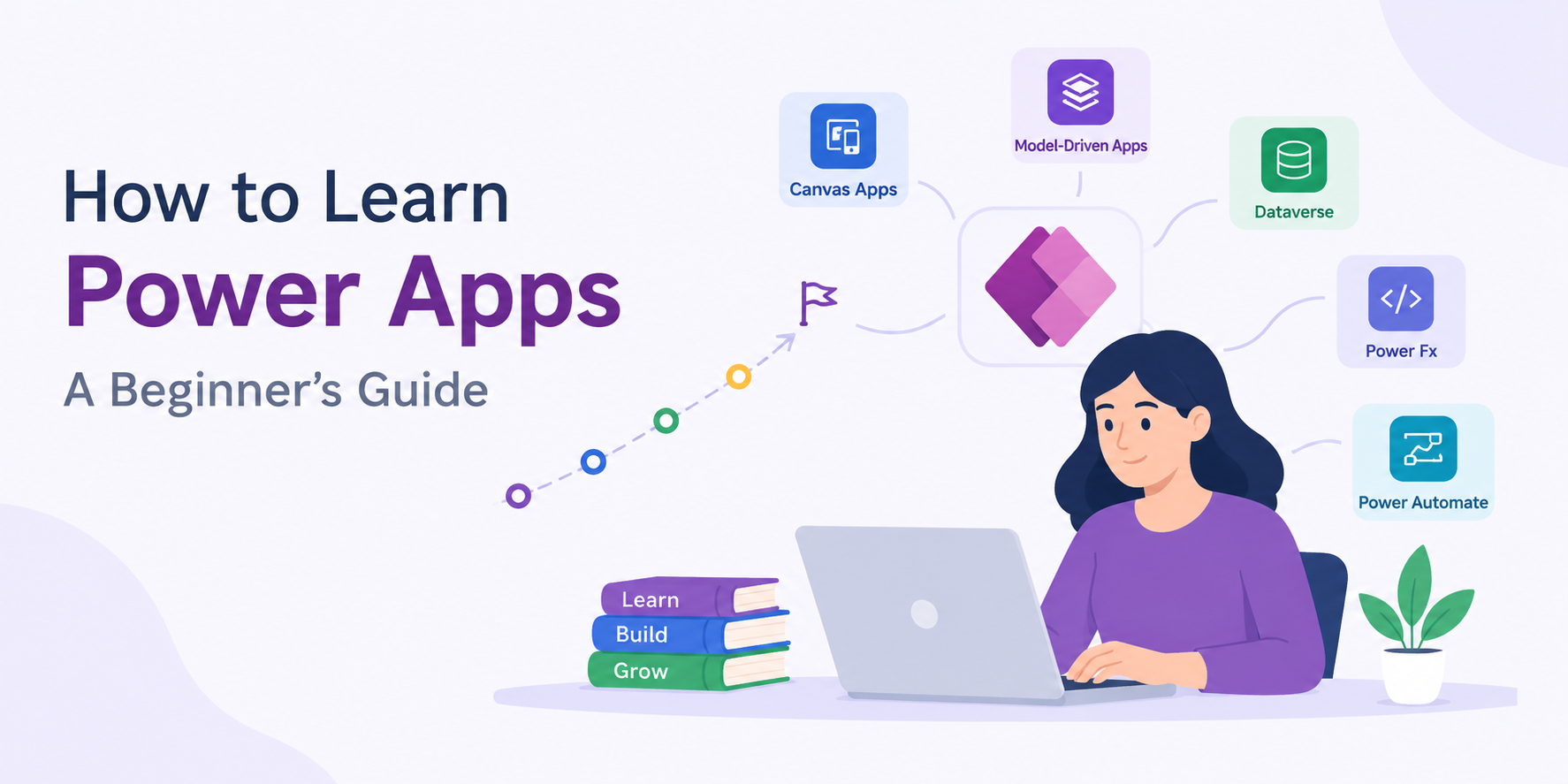
How to Learn Power Apps: A Beginner's Guide
1. Introduction: Why Learn Power Apps?
Every modern business relies on structured applications to track operations, manage data, and reduce tedious manual work. However, waiting months for custom software development can slow down growth. This is where learning Microsoft Power Apps transforms how organizations operate.
Microsoft Power Apps is a market-leading low-code platform that empowers anyone—from IT professionals to non-technical business users—to build custom business applications quickly. You do not need years of software engineering experience or complex programming knowledge to get started.
With Power Apps, beginners can build functional tools for real-world scenarios such as:
- Employee Onboarding: Digitizing tasks, document collection, and orientation checklists.
- Inventory Tracking: Managing stock levels and automated restock alerts.
- Expense Approvals: Streamlining manager sign-offs and receipt submission.
- Customer Management: Tracking service tickets, leads, and operational inquiries.
If you are exploring how to learn Power Apps, this comprehensive beginner’s guide covers essential skills, core app architectures, step-by-step learning roadmaps, real-world projects, certification paths, and structured training options.
2. What Is Microsoft Power Apps?
Microsoft Power Apps is a low-code application development platform designed to help users create custom apps without writing complex software code. Unlike traditional software development, which requires deep expertise in languages like C#, Java, or JavaScript, low-code app development utilizes visual drag-and-drop interfaces, pre-built components, and simple, Excel-like logic.
Power Apps connects directly to existing business data, enabling teams to replace slow paper-based workflows or messy spreadsheets with interactive digital interfaces. It integrates seamlessly across the Microsoft ecosystem, connecting natively with Microsoft SharePoint, Excel, Dataverse, and Power Automate for automated background operations. Applications created in Power Apps are automatically responsive and accessible across web browsers, tablets, and mobile devices (iOS and Android).
Common Business Applications
- Employee Leave Request Application: Allows employees to check balances, request time off, and receive manager approvals automatically.
- Inventory Management App: Helps warehouse teams scan barcodes, update stock counts, and trigger low-stock alerts.
- Customer Enquiry Tracking Application: Enables support teams to log, assign, and resolve client inquiries from a unified dashboard.
3. What Do You Need to Learn Power Apps?
One of the biggest misconceptions beginners have is thinking they need a computer science degree or software coding background to build functional apps. In reality, getting started requires only basic digital literacy and logical problem-solving skills.
Core Prerequisites
- Basic Computer Skills: Familiarity with business applications, web browsers, and cloud tools.
- Data Fundamentals: A basic understanding of tables, rows, columns, and how data is structured.
- Spreadsheet Logic: Experience with Microsoft Excel formulas gives you a head start with Power Fx.
- Understanding Business Processes: A clear picture of everyday workflows, such as record approvals and multi-step tasks.
- Environment Access: A Microsoft 365 account or a free Microsoft Power Apps Developer Plan to practice building.
- Practical Mindset: A willingness to learn by building small practice applications hands-on.
Important Points to Clarify
- No Programming Experience Needed: Prior coding experience is not essential for beginners.
- Excel/SharePoint Experience Helps: Prior familiarity with Excel or SharePoint makes the learning curve smoother, but it is not mandatory.
- Advanced Features: Complex custom API integrations, advanced security structures, or custom code components may require deeper technical learning later on.
4. How to Learn Power Apps: Step-by-Step Learning Path
To avoid feeling overwhelmed, follow a structured sequence rather than trying to consume unstructured tutorials randomly. Here is the recommended beginner-to-advanced learning roadmap:
Step 1: Understand Power Platform Basics
Understand where Power Apps sits within the broader Microsoft Power Platform ecosystem. Learn key concepts like environments, data connectors, and security roles, and understand the difference between development, testing, and production environments.
Step 2: Start with Canvas Apps
Begin with Canvas Apps using Power Apps Studio. Learn how to insert galleries, forms, text inputs, and buttons, arrange design elements on screens, set up basic screen navigation, and connect your app to a simple SharePoint list or Excel file.
Step 3: Learn Data Connections and Management
Master how business applications store, retrieve, and update information. Understand tables, records, columns, and data relationships, and learn when to connect to Excel, SharePoint, or Dataverse. Practice displaying, filtering, editing, and searching records dynamically.
Step 4: Learn Power Fx Formulas
Power Fx is the low-code formula language used in Power Apps. Start with simple logic like If() conditions, progress to filtering and variables using Filter(), Set(), and UpdateContext(), and use functions like SubmitForm() and Patch() to control user interactions and write data back to your data source.
Step 5: Explore Model-Driven Apps and Dataverse
Learn data-first application development. Model-Driven Apps build the user interface automatically based on your structured data models in Dataverse. Learn how to build relational tables, configure forms, design views, and construct business dashboards.
Step 6: Integrate Power Automate Workflows
Connect your applications to automated cloud workflows using Microsoft Power Automate. Learn how to trigger email notifications, route multi-level approval requests, and update external records automatically when actions occur within your app.
Step 7: Build, Test, and Publish
Practice full app lifecycle management. Test navigation, formulas, data validation, and accessibility. Learn app sharing permissions, role-based security, version history, and key performance optimization rules for production use.
5. Learn Canvas Apps First
When starting out, beginners should focus on Canvas Apps. Canvas Apps offer a blank canvas, giving developers complete flexibility over the visual interface, screen layouts, and user interactions
You build Canvas Apps inside Power Apps Studio using drag-and-drop controls, including labels, galleries (for displaying lists), edit forms (for entering data), buttons, and media inputs. You connect these controls directly to underlying data sources and use Power Fx formulas to dictate behavior.
- Suggested Beginner Project: Build a simple Employee Directory App. Create a screen with a searchable gallery showing employee photos and job titles, a detail screen showing complete contact info, and an edit form to update details.
Mastering Canvas Apps helps you grasp essential concepts like visual alignment, responsive design, data binding, and basic user experience principles.
6. Understand Model-Driven Apps
While Canvas Apps start with a design screen, Model-Driven Apps follow a data-first approach. Instead of placing controls manually on a canvas, the user interface is generated automatically based on the underlying structure of your data in Microsoft Dataverse.
Model-Driven Apps excel in complex, end-to-end business process scenarios requiring strict data relationships, built-in security, and consistent layouts across large enterprise teams.
Key Components
- Dataverse Tables: Define business entities (e.g., Accounts, Contacts, Incidents).
- Relationships: Establish One-to-Many ($1:N$) or Many-to-Many ($N:N$) data connections.
- Forms & Views: Define how data is displayed, edited, filtered, and listed.
- Dashboards & Charts: Provide real-time operational analytics and KPI tracking.
Canvas Apps vs. Model-Driven Apps Comparison
| Feature | Canvas Apps | Model-Driven Apps |
| Design Approach | Design-first (Pixel-perfect layout) | Data-first (Data model drives interface) |
| UI Control | Full drag-and-drop control over every element | Standardized, component-based layout |
| Primary Data Source | Connects to 350+ data sources (SharePoint, Excel, SQL, etc.) | Built natively on Microsoft Dataverse |
| Best Use Cases | Task-specific apps, mobile forms, front-line tools | Complex CRM, case management, enterprise solutions |
- Suggested Practical Example: Build a Service Request Tracker in Dataverse to record incoming issues, track status transitions across service teams, and display resolution metrics on executive dashboards.
7. Learn Microsoft Dataverse and Data Connections
Choosing the right data foundation is critical when building Power Apps. While beginners often start by connecting to simple spreadsheets, professional application development relies on robust relational platforms like Microsoft Dataverse.
Microsoft Dataverse is a scalable, cloud-based data platform that securely stores and manages business data. It features built-in table structures, calculated fields, rich relationship rules, and enterprise-grade role-based access control (RBAC).
Comparison of Popular Data Sources
| Data Source | Best Use Case | Key Advantages | Primary Limitations |
| Microsoft Excel | Beginner practice, small ad-hoc lists | Universal familiarity, quick setup | Poor concurrent user support, non-relational, delegation issues |
| SharePoint Lists | Departmental tools, team applications | Included with standard M365 licenses, easy integration | Limited scalability for massive data, basic row-level security |
| Microsoft Dataverse | Enterprise applications, business processes | Relational integrity, granular RBAC, auto-audit logs, native integrations | Requires premium licensing tiers |
Selecting the right data source depends on project scale, concurrent usage, security requirements, and available licensing.
8. Learn Power Fx Formulas
Power Fx is the open-source, low-code formula language used throughout Microsoft Power Apps. Inspired by Microsoft Excel, Power Fx relies on declarative formulas that react automatically when underlying values change.
Essential Functions for Beginners
If()&Switch(): Evaluates logical conditions to control UI visibility or item properties.- Excel
Filter()&Search(): Returns records matching specific criteria.- Excel
Set()&UpdateContext(): Manages global and screen-level variables to hold temporary application states.SubmitForm()&Patch(): Saves data inputs back to connected data sources.- Excel
Instead of trying to memorize every function, practice writing simple expressions to handle real app interactions, such as validating mandatory fields, showing modal confirmations, or dynamically calculating subtotals.
9. Practise With Real-World Power Apps Projects
The fastest way to learn Power Apps is by building real projects. Progression from simple, single-table apps to multi-tier, integrated business solutions reinforces core concepts effectively.
Recommended Beginner-to-Advanced Projects
1. Employee Directory
- Problem Solved: Centralizes company staff contact records for quick lookup.
- Data Source: SharePoint List or Excel.
- Key Features: Search bar, department dropdown filters, gallery view, detail popup screen.
- Concepts Practiced: Canvas layout, basic galleries, dynamic filtering with
Search()andFilter(). - Advanced Extension: Add an export button or integrate device calling actions.
2. Expense Submission App
- Problem Solved: Allows field employees to digitize paper receipt submissions.
- Data Source: SharePoint List with attached file capabilities.
- Key Features: Form inputs, receipt image uploads, status flags, input validation rules.
- Concepts Practiced: Display forms,
SubmitForm(), input validation, attachment controls. - Advanced Extension: Implement automated total calculations and manager approval routing.
3. Inventory Tracking App
- Problem Solved: Tracks stock movement, asset checkout, and physical location counts.
- Data Source: Dataverse or SharePoint List.
- Key Features: Barcode camera scanner integration, stock increment/decrement buttons, low-stock flags.
- Concepts Practiced:
Patch()formulas, hardware interactions, variable state management. - Advanced Extension: Auto-generate PDF restock orders upon reaching critical thresholds.
4. Leave Approval System
- Problem Solved: Manages vacation requests and automated multi-tier manager sign-offs.
- Data Source: Dataverse tables.
- Key Features: Calendar interface, leave balance tracking, request forms, email notifications.
- Concepts Practiced: Power Automate workflow triggers, approval actions, relational queries.
- Advanced Extension: Integrate automated balance adjustments upon request approval.
5. Customer Service Request Hub
- Problem Solved: Tracks client issues, service level agreements (SLAs), and internal resolution times.
- Data Source: Microsoft Dataverse.
- Key Features: Business Process Flows, priority-based queues, analytical dashboards.
- Concepts Practiced: Model-Driven Apps, custom relationships, security roles, system charts.
- Advanced Extension: Embed interactive Power BI reporting tiles directly into app forms.
Building a portfolio of 2-3 completed projects with documented architecture diagrams, formulas, and screenshots provides concrete proof of your skills during job interviews.
10. Power Apps Certification: What Should Beginners Know?
Earning official Microsoft credentials validates your technical knowledge and helps strengthen your resume. However, certifications should complement hands-on project experience rather than replace it.
Microsoft Certification Pathway
- PL-900 (Microsoft Power Platform Fundamentals): Ideal for complete beginners. Covers the business value of Power Apps, Power Automate, Power BI, and Dataverse.
- PL-200 (Microsoft Power Platform Functional Consultant): Designed for intermediate users. Focuses on application configuration, Dataverse data modeling, security, workflow automation, and environment administration.
Certification combined with a portfolio of real-world app projects offers a strong foundation when applying for business application roles.
11. Power Apps Course vs Self-Learning: Which Is Better?
Choosing between self-directed learning and structured instructor-led training depends on your learning style, career urgency, and budget.
Self-Learning vs. Structured Training
| Factor | Self-Learning | Structured Training |
| Learning Pace | Flexible, self-scheduled | Structured, milestone-based timeline |
| Support System | Independent online forum search | Direct mentorship & instructor Q&A |
| Hands-On Practice | Unstructured, self-designed projects | Guided business projects & case studies |
| Curriculum Depth | Disjointed tutorials across platforms | Comprehensive end-to-end roadmap |
| Time Investment | Longer (trial-and-error driven) | Shorter, accelerated learning path |
Guided Learning with Eduzek
For professionals and job seekers who prefer structured instruction, Eduzek offers dedicated live online training programs like the Power Apps online courses for working professionals.
Eduzek's curriculum covers Canvas Apps, Model-Driven Apps, Dataverse modeling, Power Fx formulas, and Power Automate integration through hands-on business scenarios guided by industry experts.
12. How Long Does It Take to Learn Power Apps?
Learning time depends on your prior technical background, study consistency, and project complexity.
- Beginner Stage (1–2 Weeks): Learn basic navigation, build a single-screen Canvas App, and connect simple lists.
- Intermediate Stage (3–6 Weeks): Master complex Power Fx logic, multi-screen navigation, form validations, SharePoint integrations, and background flows.
- Advanced Stage (2–4 Months): Design relational Dataverse models, build Model-Driven Apps, configure enterprise security, and manage application lifecycles.
Consistent hands-on building is key to retaining concepts and moving beyond basic tutorials.
13. Career Opportunities After Learning Power Apps
As organizations prioritize digital transformation, demand for low-code specialists continues to grow. Learning Power Apps opens up diverse career paths across IT and business departments.
Core Career Roles
- Power Platform Developer: Focuses on custom application logic, complex formulas, API integrations, and user interfaces.
- Power Platform Functional Consultant: Bridges the gap between business needs and technical solutions, gathering requirements and configuring solutions.
- Business Applications Specialist: Digitizes internal workflows and maintains departmental tools within organizations.
- Business Process Analyst: Analyzes operational bottlenecks and automates manual steps using low-code tools.
Complementary Skills to Boost Marketability
Combining Power Apps expertise with related tools strengthens your professional profile:
- Power Automate: End-to-end process automation.
- Power BI: Data visualization and business intelligence reporting.
- Microsoft Dataverse: Relational data architecture.
- SharePoint: Document management and team collaboration.
14. Common Mistakes Beginners Should Avoid
Avoid these frequent learning pitfalls to build functional, high-performing applications faster:
- Jumping Ahead Too Quickly: Attempting advanced integrations before mastering basic Canvas controls and data binding.
- Neglecting Data Architecture: Building UI screens before defining proper table structures and relationships.
- Copy-Pasting Code Mindlessly: Copying formulas without understanding how arguments like
Filter()work. - Ignoring Delegation Limits: Writing formulas that fail when data sources scale past 2,000 records.
- Overlooking Security: Forgetting to configure share permissions, environments, and data access roles.
Pro-Tip: Follow a cycle: learn one concept, apply it in a small project feature, test it thoroughly, and then introduce the next capability.
15. Frequently Asked Questions (FAQs)
Q1: How do I learn Power Apps as a complete beginner?
Start by understanding the basics of low-code development, explore Canvas Apps using simple SharePoint or Excel data sources, learn fundamental Power Fx formulas, and practice by building real-world projects like an employee directory.
Q2: Can I learn Power Apps without coding experience?
Yes. Power Apps is designed as a low-code platform. Building apps relies primarily on visual drag-and-drop elements and simple Excel-like formulas rather than traditional software coding.
Q3: Is Power Apps easy to learn?
Building basic applications is simple and accessible for non-technical users. However, mastering complex business logic, enterprise security, Dataverse modeling, and advanced integrations requires dedicated study and hands-on practice.
Q4: Can I learn Power Apps for free?
Yes. Microsoft offers a free Power Apps Developer Plan that provides a personal environment to practice building apps, testing Dataverse, and experimenting with workflows without licensing costs.
Q5: Should I learn Canvas Apps or Model-Driven Apps first?
Beginners should start with Canvas Apps. They offer complete visual design freedom and make it easy to learn core UI components, data binding, and basic formula logic.
Q6: Do I need to learn Power Automate along with Power Apps?
While not mandatory for every app, learning Power Automate is highly recommended. It enables background automation, approval tasks, and email notifications tied directly to app events.
Q7: What beginner projects should I build first?
Start with single-purpose applications such as an Employee Directory, an Expense Submission Form, an Inventory Counter, or a Leave Request Manager.
Q8: Is a Power Apps certification necessary to land a job?
Certifications like PL-900 or PL-200 validate your knowledge and help strengthen your resume, but practical skill shown through hands-on project portfolios carries equal weight with hiring managers.
Q9: Which data sources should I focus on first?
Start with Microsoft Excel and SharePoint lists for basic learning. As you progress to enterprise applications, focus on mastering Microsoft Dataverse.
Q10: Should I enroll in a structured training course?
If you prefer a structured learning path, live mentorship, and guided hands-on business projects, enrolling in professional training can accelerate your progress compared to self-study.
Q11: What is the difference between Power Apps and Power Automate?
Power Apps is used to build visual user interfaces and front-end screen interaction, whereas Power Automate handles back-end workflow automation, data updates, and system notifications.
Q12: What is Power Fx in Power Apps?
Power Fx is the low-code, strongly-typed formula language used across Power Apps. Its syntax is modeled after Microsoft Excel formulas.
Q13: Can Power Apps run on mobile phones?
Yes. Applications built in Power Apps run natively inside the Power Apps mobile client on iOS and Android devices, as well as in web browsers.
Q14: What is data delegation in Power Apps?
Delegation occurs when Power Apps passes data processing tasks (like filtering or sorting) directly to the back-end data source rather than loading records into local device memory.
Q15: What is Microsoft Dataverse?
Dataverse is a secure, cloud-based relational data platform that natively powers Microsoft Power Platform apps, handling entities, relationships, security, and business rules.
Q16: Can I connect Power Apps to external databases like SQL Server?
Yes. Power Apps supports over 350 pre-built connectors, enabling direct connections to SQL Server, Salesforce, SAP, Oracle, and custom APIs.
Q17: What are standard vs. premium connectors in Power Apps?
Standard connectors (like SharePoint and OneDrive) are included in standard M365 plans. Premium connectors (like SQL Server, Dataverse, and custom HTTP APIs) require dedicated Power Apps licensing.
Q18: How do I share a completed Power App with colleagues?
Apps are shared through the Power Apps Maker Portal. You can grant access to individual users or Azure Active Directory security groups with specific environment permissions.
Q19: What is the Microsoft Power Apps Developer Plan?
It is a free environment provided by Microsoft for developers to build, test, and learn Power Apps, Dataverse, and Power Automate without requiring enterprise administrative access.
Q20: Where can I find structured Power Apps training?
You can explore comprehensive programs like the Power Apps and Power Automate training in India provided by Eduzek, featuring live instruction, scenario-based projects, and career support.
16. Final CTA: Ready to Start Learning Power Apps?
Learning Microsoft Power Apps is one of the most practical skill investments you can make today. By mastering low-code app development, Canvas Apps, Dataverse architectures, and automated workflows, you can build powerful solutions that streamline real-world business operations.
If you are looking for guided instruction, practical business scenarios, and live expert feedback, explore Eduzek's structured training program.
Why Choose Eduzek Training?
- Hands-on Learning: Build real business applications step-by-step.
- Complete Curriculum: Master Canvas Apps, Model-Driven Apps, Dataverse, Power Fx, and Power Automate integration.
- Live Mentor Support: Get direct feedback on your project code and app layouts.
- Career Preparation: Build an interview-ready portfolio of business apps.
Related Course