Call us:
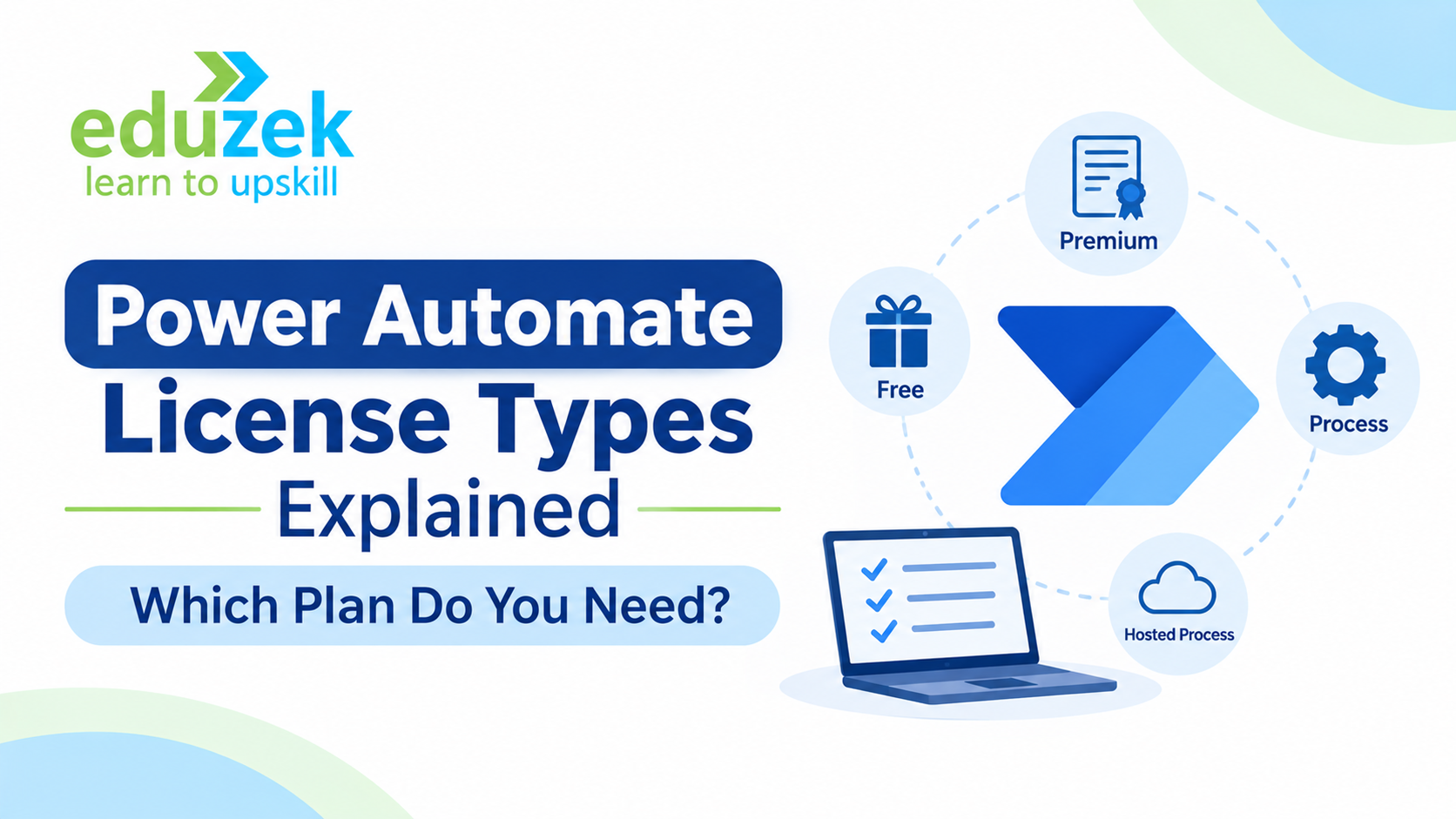
Power Automate License Types Explained: Which Plan Do You Need?
Power Automate License Types Explained: Which Plan Do You Need?
Last updated: 20 November 2026
Microsoft Power Automate has become an important tool for businesses looking to automate repetitive tasks, streamline approvals, connect applications and reduce manual work. From sending automated email notifications to processing invoices, synchronising business data and managing enterprise workflows, Power Automate helps organisations improve productivity through automation.
However, before implementing an automation solution, one important question needs to be answered: Which Power Automate license do you actually need?
Microsoft offers different licensing options depending on how users create and execute workflows, which connectors they use, whether they need desktop automation and how extensively an organisation plans to automate its business processes.
For beginners, working professionals and IT administrators, understanding Power Automate license types can initially be confusing. Terms such as Power Automate Free, Microsoft 365 included capabilities, Premium, Process and Hosted Process are often used when discussing licensing requirements.
Choosing the wrong plan can result in unexpected licensing requirements, restricted functionality or additional costs when an automation project moves into production.
In this guide, we will explain the different Power Automate licensing options, what each plan offers, how premium connectors affect licensing, what to understand about desktop automation and how to evaluate licensing requirements for common business scenarios.
Whether you are learning Power Automate or planning to implement automation within your organisation, this guide will help you understand the licensing landscape before making a decision.
1. Introduction to Power Automate Licensing
Power Automate is Microsoft's workflow automation platform and an important component of the Microsoft Power Platform.
It allows users to create automated workflows that connect different applications and services. These workflows can perform actions automatically based on triggers, schedules or user interactions.
For example, a business can use Power Automate to:
- Send an email notification whenever a new SharePoint document is uploaded.
- Automatically route employee leave requests to managers for approval.
- Create tasks when a new customer enquiry is received.
- Synchronise information between business applications.
- Generate notifications when inventory levels fall below a specified threshold.
- Automate repetitive tasks performed in desktop applications.
- Process documents and move information between connected systems.
While the platform offers several capabilities, not every feature is available under every license.
Power Automate licensing determines which connectors, automation capabilities, execution methods and usage entitlements are available to a user or an automated process.
Microsoft broadly uses two licensing approaches:
User-based licensing: A license is assigned to an individual user, giving that person access to specified Power Automate capabilities.
Capacity-based licensing: A license is assigned to an automation or machine, providing execution capacity for a business process or unattended automation scenario.
Understanding this distinction is the first step towards selecting an appropriate licensing option.
It is also important to remember that having access to Power Automate through a Microsoft 365 subscription does not automatically mean that every premium feature is included.
2. Understanding the Different Power Automate License Types
Microsoft provides several licensing options for different automation requirements. Some are intended for individual users, while others support organisation-wide automation and unattended robotic process automation (RPA).
The main licensing options to understand are:
A. Power Automate Free
Power Automate Free is a suitable starting point for individuals who want to explore workflow automation and understand how the platform works.
It provides basic automation capabilities, particularly for workflows that use standard connectors.
With the free license, eligible users can:
- Create and run cloud flows using standard connectors.
- Build basic automated workflows.
- Create desktop flows locally.
- Execute desktop flows in attended mode.
- Explore the Power Automate interface.
- Understand triggers, actions and workflow logic.
However, the free license has limitations.
It does not provide general access to premium connectors or the full set of premium automation capabilities. Cloud flows created with the Free license also have restrictions around sharing and usage.
For example, a beginner might create a simple flow that sends an email notification when a new item is added to a SharePoint list.
This is a useful way to understand the platform without immediately purchasing a standalone premium subscription.
Who should consider it?
- Beginners exploring Power Automate.
- Individuals learning workflow automation.
- Users experimenting with standard connectors.
- People building basic personal automation workflows.
The Free license is useful for learning and experimentation, but organisations should evaluate their production requirements separately.
B. Power Automate Premium
Power Automate Premium is a standalone, user-based subscription designed for individuals who need broader automation capabilities.
It is particularly relevant for professionals, developers, consultants and business users who create more advanced workflows.
The Premium license provides access to capabilities such as:
- Unlimited cloud flows, subject to applicable service limits.
- Standard, premium and custom connectors.
- Automated, instant and scheduled cloud flows.
- Desktop flow creation and attended RPA execution.
- Process mining capabilities.
- AI Builder service credits, subject to the plan's entitlements.
- Microsoft Dataverse storage entitlements.
- Advanced automation capabilities.
One of the biggest advantages of Power Automate Premium is access to premium connectors.
For example, a business might need to connect Power Automate with SQL Server, Dataverse or another premium service. A standard Microsoft 365 entitlement may not cover such a scenario, whereas Power Automate Premium provides broader connector access.
The Premium license also includes one attended RPA bot.
Attended RPA means the desktop automation runs with human supervision. The user is generally signed in and working with the machine while the automation executes.
Who should consider Power Automate Premium?
- Power Automate developers.
- Business process automation professionals.
- Consultants working on client automation projects.
- Working professionals building advanced workflows.
- Users who regularly work with premium connectors.
- Professionals who need attended desktop automation.
For individuals developing automation solutions as part of their job, Premium is an important license to understand.
C. Power Automate Process License
Power Automate Process is a capacity-based license intended for business processes and autonomous automation.
Unlike Premium, which is assigned to an individual user, a Process license can be allocated to a cloud flow or machine, depending on the use case.
It is especially useful when an organisation wants to automate a business process without requiring every user who benefits from that process to hold an individual Power Automate Premium license.
Some examples include:
- Automated invoice processing.
- Organisation-wide employee onboarding.
- Automated HR workflows.
- Large-scale approval processes.
- Unattended desktop automation.
A Process license can provide:
- Premium and custom connector entitlements.
- Capacity for a licensed cloud flow.
- One unattended RPA bot when allocated appropriately to a machine.
- Business process flow capabilities.
- Additional Power Platform request capacity.
Microsoft currently documents an entitlement of up to 250,000 Power Platform requests per day for each Process license, subject to applicable limits and policies.
An important distinction is that Process licensing is not simply another name for Premium.
Premium is user-oriented, while Process is automation-oriented.
For example, consider an organisation that has developed an invoice processing automation used by multiple departments.
Instead of relying only on individual user licensing, the organisation may evaluate whether licensing the core automated process with Power Automate Process is appropriate.
The exact configuration depends on how the flow is designed, how it is executed and whether desktop automation is involved.
Who should consider it?
- Organisations implementing shared business processes.
- Businesses running high-volume cloud flows.
- Companies requiring unattended RPA.
- IT teams managing enterprise automation.
- Organisations that want process-level rather than individual-user licensing.
D. Power Automate Hosted Process
Power Automate Hosted Process is designed for organisations that want unattended desktop automation without managing all the underlying machine infrastructure themselves.
It provides the capabilities of the Process license along with a Microsoft-hosted machine for running unattended RPA.
This is particularly useful when businesses want to automate desktop-based tasks but do not want to maintain dedicated physical machines or manage their own virtual machine infrastructure for every automation.
For example, consider a finance department that needs to run an automated process every night.
The automation may need to:
- Sign in to a business application.
- Download transaction information.
- Update records in another application.
- Generate a report.
- Complete the process without human supervision.
A Hosted Process license can support this type of unattended desktop automation using a Microsoft-hosted machine.
Its key capabilities include:
- Unattended RPA.
- Microsoft-hosted machine capacity.
- Process license capabilities.
- Automation without managing a dedicated physical machine.
- Support for hosted machine groups and scaling scenarios.
Each Hosted Process license provides capacity for one hosted bot.
Who should consider it?
- Organisations requiring unattended RPA.
- Businesses with recurring desktop automation workloads.
- Companies wanting Microsoft-hosted automation infrastructure.
- Enterprises looking to scale desktop automation.
The Hosted Process option is particularly relevant when infrastructure management is an important consideration.
Quick Comparison of Power Automate License Types
| LicenseLicensing modelMain purpose | ||
| Power Automate Free | User-based | Basic automation and learning |
| Power Automate Premium | User-based | Advanced cloud and attended desktop automation |
| Power Automate Process | Capacity-based | Business process automation and unattended RPA |
| Power Automate Hosted Process | Capacity-based | Unattended automation using hosted machines |
The most suitable license depends on the automation scenario rather than simply the number of features a user wants to access.
3. What Power Automate Capabilities Are Included with Microsoft 365?
One of the most common questions among new Power Automate users is whether they need to purchase a separate license if they already have Microsoft 365.
The answer depends on the Microsoft 365 subscription and the automation requirements.
Certain Microsoft 365 and Office 365 subscriptions include limited Power Automate use rights. These are sometimes referred to as seeded licenses.
They allow users to create and execute certain workflows without purchasing a standalone Power Automate Premium subscription.
What Can You Do with Microsoft 365 Included Capabilities?
Eligible Microsoft 365 subscriptions generally provide access to:
- Automated cloud flows.
- Scheduled cloud flows.
- Instant or button-triggered cloud flows.
- Standard connectors.
- Basic workflow automation involving Microsoft 365 services.
For example, an organisation can create a workflow that:
- Monitors a SharePoint document library.
- Detects when a new document is uploaded.
- Sends an email notification.
- Creates a corresponding task or updates a supported Microsoft 365 service.
This type of workflow may be possible using the Power Automate capabilities included with an eligible Microsoft 365 subscription.
Important Limitations
Microsoft 365 included capabilities do not provide unrestricted access to Power Automate.
Some important limitations include:
- Premium connectors are generally not included.
- Custom connectors are generally not included.
- Unattended RPA is not included.
- Attended RPA is not generally included through Microsoft 365.
- Business process flows are not included through ordinary Microsoft 365 seeded rights.
- Usage remains subject to applicable Power Platform request limits and service restrictions.
There are specific exceptions for certain product environments and in-context usage rights.
For example, some premium connector capabilities may be available in Dataverse for Teams environments, while certain Power Apps and Dynamics 365 licenses provide additional Power Automate rights when flows operate within the licensed application's context.
This is why businesses should check the exact Microsoft 365 subscription and associated use rights rather than assuming that all Microsoft 365 plans provide identical capabilities.
Practical example
Suppose a company uses Microsoft 365 and SharePoint to manage internal documents.
It wants to create a flow that sends an email whenever a new document is uploaded.
If the required connectors and actions are covered by its Microsoft 365 entitlement, a separate Premium license may not be necessary for that workflow.
However, if the same company wants to connect the workflow to an external SQL database using a premium connector, additional licensing may be required.
4. Understanding Standard, Premium and Custom Connectors
Connectors are an essential part of Power Automate.
They allow workflows to communicate with external applications, databases and services.
For example, a Power Automate workflow can use connectors to interact with SharePoint, Outlook, Microsoft Teams, SQL Server and other applications.
Microsoft broadly classifies connectors into three categories.
A. Standard Connectors
Standard connectors are available through eligible basic Power Automate licensing entitlements, including certain Microsoft 365 subscriptions.
Examples include:
- SharePoint.
- Microsoft Outlook.
- Microsoft Teams.
- OneDrive for Business.
- Excel Online (Business).
These connectors are frequently used for everyday business automation.
For example, a company might create a flow that sends an Outlook email whenever a SharePoint list receives a new entry.
Standard connectors are particularly useful for beginners because they make it possible to understand triggers, actions, conditions and workflow logic.
B. Premium Connectors
Premium connectors provide connectivity to additional applications and services that are not generally included in standard Microsoft 365 Power Automate rights.
Some examples include:
- SQL Server.
- Microsoft Dataverse.
- HTTP.
- Custom business application integrations.
- Other premium services listed in Microsoft's connector reference.
Premium connectors are particularly important when organisations need to integrate multiple enterprise systems.
For example, consider a business that stores customer information in SQL Server and wants to automate customer notifications through Power Automate.
If the workflow uses the SQL Server premium connector, the appropriate premium licensing entitlement is required.
A Microsoft 365 subscription alone generally does not cover this type of standalone premium connector usage.
C. Custom Connectors
Custom connectors allow developers to connect Power Automate to APIs and services that do not have an existing connector suitable for their requirements.
Businesses often use custom connectors when they have:
- Proprietary internal applications.
- Custom-developed business systems.
- External REST APIs.
- Specialised software platforms.
- Internal services requiring API integration.
For example, an organisation may have developed its own employee management application.
If the application exposes an API, developers may create a custom connector that allows Power Automate to retrieve employee details, update records or initiate business processes.
Custom connectors require the appropriate licensing entitlement.
Why Connector Classification Matters
Before creating a workflow, identify every connector that the flow will use.
A workflow may appear simple, but using even one premium connector can change its licensing requirements.
For example:
| Automation scenarioConnector requirement | |
| Send an Outlook email | Standard |
| Create a SharePoint list item | Standard |
| Update an Excel Online table | Standard |
| Connect to SQL Server | Premium |
| Access a custom internal API | Custom connector |
| Work with Dataverse | Premium in general standalone usage; check applicable seeded or app-context rights |
Always verify the connector classification in Microsoft's official connector reference:
https://learn.microsoft.com/en-us/connectors/connector-reference/
5. Understanding Per-User and Process-Oriented Licensing
Power Automate licensing can be broadly divided into user-based and capacity-based approaches.
Understanding this difference helps organisations avoid purchasing licenses that do not match their actual automation requirements.
User-Based Licensing
Under user-based licensing, a subscription is assigned to an individual user.
Power Automate Premium is the main standalone example.
A licensed user can create and run multiple cloud flows within applicable service limits and access premium automation capabilities.
This model is useful when several employees independently create and manage automation solutions.
For example:
- An automation developer creates approval workflows.
- A business analyst builds reporting automations.
- An IT professional creates integrations between applications.
- A consultant develops client-specific workflows.
Each person may need an appropriate user license depending on the features they use and their role in creating or executing flows.
Capacity-Based Licensing
Capacity-based licensing assigns entitlements to an automation or machine rather than relying exclusively on an individual user license.
Power Automate Process and Hosted Process are important examples.
This model is useful for organisations that want to license a business process or run autonomous automation.
For example, an employee onboarding process may involve HR, IT, finance and administration teams.
Instead of thinking only about which individual created the workflow, the organisation can evaluate whether the process itself should have dedicated licensing capacity.
What About the Older Per-Flow and Per-User Plans?
You may still encounter references to older Power Automate per-user and per-flow plans in online tutorials, documentation or discussions.
These are legacy licensing names.
Microsoft removed the legacy Per-flow plan and the standalone Unattended RPA add-on from its price list in February 2024.
Existing legacy licenses may continue to work under their applicable terms, but they are not the same as newly available licensing options.
The newer Power Automate Process license is the important option to understand when evaluating process-level licensing and unattended automation.
Therefore, when comparing older tutorials with current Microsoft documentation, always check whether the information refers to a legacy plan or a current offering.
6. Power Automate Desktop Licensing: Attended vs Unattended RPA
Power Automate supports desktop automation through Power Automate for desktop.
Unlike cloud flows, which interact with applications through connectors and APIs, desktop flows can automate actions performed directly on a computer.
These actions may include:
- Opening desktop applications.
- Clicking buttons.
- Entering information into forms.
- Copying data between applications.
- Downloading files.
- Performing repetitive data entry.
- Interacting with older applications that do not provide suitable APIs.
However, desktop automation has different licensing considerations.
Two important terms are attended RPA and unattended RPA.
A. Attended RPA
Attended RPA refers to desktop automation that runs with human supervision.
The user is generally signed in and uses the machine while the automation performs its assigned tasks.
Power Automate Premium includes one attended RPA bot.
For example, an employee may run a desktop flow that:
- Opens an accounting application.
- Reads information from an Excel file.
- Enters the information into the application.
- Generates a report.
- Saves the report to a designated folder.
The employee supervises the process while the automation runs.
Attended RPA is useful when an employee needs assistance with repetitive tasks but still participates in the overall process.
B. Unattended RPA
Unattended RPA executes desktop flows without requiring a person to supervise each run.
The automation can run on a machine through an unattended bot.
For example, a finance department may need to process reports every night after business hours.
An unattended automation can:
- Sign in to the required application.
- Retrieve transaction data.
- Process the records.
- Generate reports.
- Save the output.
- Complete the workflow without an employee manually initiating each action.
Power Automate Process provides an unattended bot entitlement when allocated appropriately to a machine.
Hosted Process also supports unattended automation and provides a Microsoft-hosted machine.
Attended vs Unattended RPA
| FeatureAttended RPAUnattended RPA | ||
| Human supervision | Required | Not required during execution |
| Typical execution | User-initiated | Scheduled or triggered |
| Machine | User's registered machine | Licensed machine or hosted machine |
| Premium license | Includes one attended bot | Does not include unattended RPA |
| Process license | Does not include attended RPA | Includes one unattended bot when allocated to a machine |
| Hosted Process | Not its primary purpose | Supports unattended automation on hosted infrastructure |
An important point: a Power Automate Premium subscription does not automatically include unattended RPA.
Organisations planning to run desktop automation independently of a user should evaluate Process or Hosted Process licensing and any additional software licensing requirements.
Microsoft's official documentation provides more details:
https://learn.microsoft.com/en-us/power-automate/desktop-flows/premium-features
7. Power Automate Trial Options and Their Limitations
If you are new to Power Automate and want to explore premium features before committing to a paid subscription, Microsoft's trial option can be useful.
The Power Automate Premium trial provides eligible users with access to many Premium capabilities for a limited period.
Microsoft currently documents a 90-day Power Automate user trial.
The trial generally provides access to:
- Premium connectors.
- Custom connectors.
- Advanced cloud automation.
- Desktop flow authoring.
- Attended RPA.
- Unattended desktop automation capabilities.
- Other Premium features, subject to trial entitlements.
However, there are important limitations.
What Should You Know About the Trial?
1. It is time-limited
The trial is generally available for 90 days. It is intended for evaluation rather than permanent production usage.
2. Some entitlements differ from paid subscriptions
The trial does not include all the same AI Builder credits and storage capacity as the paid Premium plan.
3. Continued usage may require a paid license
If an organisation wants to continue using premium features after the trial expires, it must evaluate an appropriate paid licensing option.
4. A trial does not remove licensing obligations
A trial should not be treated as a permanent substitute for production licensing.
Is a Trial Useful for Learning Power Automate?
Yes.
For someone learning Power Automate, a trial can provide an opportunity to explore features that may not be available through basic Microsoft 365 use rights.
You can practise:
- Creating automated cloud flows.
- Connecting applications.
- Using premium connectors.
- Building approval workflows.
- Developing desktop automation.
- Understanding advanced automation scenarios.
However, always check the trial's current terms and eligibility before starting.
Official Microsoft reference:
https://learn.microsoft.com/en-us/power-platform/admin/power-automate-licensing/types
8. How Power Automate Licensing Affects Cloud Flows
Cloud flows are one of the most widely used features of Power Automate.
They allow users to automate tasks between connected applications without having to interact directly with desktop interfaces.
Examples include:
- Sending automatic email notifications.
- Creating approval requests.
- Updating SharePoint records.
- Synchronising business information.
- Generating scheduled reports.
- Creating tasks when a new event occurs.
However, the licensing requirements of a cloud flow depend on several factors.
A. Automated Cloud Flows
Automated cloud flows start when a predefined event occurs.
For example:
A new employee record is added to a SharePoint list, and Power Automate automatically sends a notification to the HR department.
The flow typically uses the owner's licensing context unless it has an applicable flow-level license.
B. Instant Cloud Flows
Instant cloud flows are triggered manually by a user.
For example, an employee clicks a button to initiate an approval process.
For instant flows, the licensing context of the person invoking the flow is important.
If the flow uses premium connectors, the appropriate premium entitlement must be available.
C. Scheduled Cloud Flows
Scheduled cloud flows execute at predefined intervals.
For example:
- Generate a daily sales report.
- Send weekly performance summaries.
- Check pending approvals every morning.
- Update inventory information at regular intervals.
The licensing context of the flow owner is important for automated and scheduled flows.
D. Flow-Level Licensing
Organisations can also assign a Power Automate Process license to eligible cloud flows.
This provides capacity-based licensing rather than relying exclusively on an individual user's entitlement.
A Process license can be particularly useful for shared or high-volume business automations.
Microsoft also supports assigning Process capacity to flow groups. A flow group can include up to 25 eligible solution-aware flows under the documented licensing model.
E. Power Platform Request Limits
Licensing is not only about whether a user can access a connector.
It also affects the number of Power Platform requests available to the automation.
Microsoft currently documents these standard daily entitlements:
| LicenseDocumented daily request entitlement | |
| Power Automate Free | 6,000 per user |
| Microsoft 365 seeded rights | 6,000 per user |
| Power Automate Premium | 40,000 per user |
| Power Automate Process | 250,000 per license |
| Power Automate Hosted Process | 250,000 per license |
These figures are the standard documented entitlements, not a guarantee of unlimited throughput. Request limits, enforcement rules and transition arrangements can affect actual usage.
Also, connector-specific throttling limits are separate from Power Platform request limits.
For example, a workflow may have sufficient daily request capacity but still encounter throttling if it sends too many requests to a particular connector within a short period.
This is why organisations should consider both licensing and workflow design when building production automation solutions.
Official Microsoft reference:
https://learn.microsoft.com/en-us/power-platform/admin/api-request-limits-allocations
9. How Licensing Affects Business Automation Projects
The licensing requirements of a Power Automate project depend on what the project is expected to achieve.
A basic notification workflow may require only standard connectors, whereas an enterprise automation involving premium integrations, unattended RPA and high-volume processing may require additional licensing.
Let's understand this through some practical business scenarios.
Scenario 1: Basic Employee Leave Approval
A company wants employees to submit leave requests through a SharePoint form.
The workflow should:
- Capture leave request details.
- Send an approval notification to the manager.
- Update the request status.
- Notify the employee about the approval decision.
If the workflow uses standard connectors and operates within the applicable Microsoft 365 use rights, a separate Power Automate Premium license may not be required.
Scenario 2: Customer Data Integration with SQL Server
A business wants to connect its customer management workflow to SQL Server.
The workflow should:
- Retrieve customer information.
- Check customer records.
- Update database entries.
- Send automated notifications.
Since SQL Server is a premium connector in Power Automate, the appropriate premium licensing entitlement must be evaluated.
For an individual developer, Power Automate Premium may be relevant.
For an organisation-wide automated process, a Process license may also be worth evaluating.
Scenario 3: Automated Invoice Processing
A finance department wants to automate invoice processing.
The workflow should:
- Retrieve incoming invoices.
- Extract relevant information.
- Validate invoice details.
- Update financial records.
- Notify the finance team.
The solution may involve premium connectors, AI Builder capabilities, Dataverse and additional integrations.
The organisation should evaluate the required user licenses, Process capacity and AI Builder entitlements separately.
Scenario 4: Night-Time Desktop Automation
A company wants a desktop automation to run every night without employee involvement.
The workflow should:
- Sign in to a legacy application.
- Download transaction information.
- Update records.
- Generate a report.
- Save the report in a shared location.
This scenario requires unattended RPA.
Power Automate Process may be suitable if the company manages its own machine infrastructure.
Power Automate Hosted Process may be suitable if the organisation wants to use Microsoft-hosted machine capacity.
Scenario 5: Organisation-Wide HR Onboarding
A business wants to automate its employee onboarding process.
The workflow involves:
- HR receiving a new employee request.
- IT receiving an account creation task.
- Administration receiving an equipment allocation request.
- Managers receiving onboarding notifications.
- Employees receiving welcome emails.
If the solution is designed as a shared business process, the organisation can evaluate whether Power Automate Process licensing is appropriate.
The final licensing decision should consider connectors, flow ownership, users, execution frequency and any desktop automation involved.
10. Questions to Ask Before Choosing a Power Automate Plan
Before purchasing a Power Automate license, businesses and individual professionals should understand their automation requirements.
Here are some important questions to consider.
1. Will You Use Standard or Premium Connectors?
Start by identifying the applications and services that your workflows need to connect with.
If all the required connectors are standard and your existing Microsoft 365 subscription provides the necessary rights, a separate Premium subscription may not be necessary.
If your workflow uses premium or custom connectors, evaluate the appropriate licensing requirements.
2. Are You Building Personal or Organisation-Wide Automation?
If you are an individual developer creating and managing several workflows, user-based licensing may be more appropriate.
If you are implementing a shared business process used across multiple departments, process-based licensing may be worth evaluating.
3. Do You Need Desktop Automation?
Cloud flows and desktop flows have different licensing considerations.
If you only automate cloud applications using connectors, you may not need RPA capabilities.
If you want to automate desktop applications, identify whether attended or unattended RPA is required.
4. Will Automation Run Without Human Supervision?
If desktop automation must run independently, you need to evaluate unattended RPA licensing.
Power Automate Premium includes attended RPA, but unattended RPA requires a different licensing arrangement.
5. How Frequently Will Your Workflows Run?
Consider:
- Number of workflows.
- Number of actions per workflow.
- Daily execution frequency.
- Number of users involved.
- Expected transaction volume.
- Connector throttling.
- Power Platform request limits.
A workflow that runs five times per day has different capacity requirements from one that processes thousands of transactions daily.
6. Do You Need Microsoft-Hosted Machines?
If unattended desktop automation is required, consider whether your organisation can manage its own machines.
If not, Hosted Process may be worth evaluating.
7. Do You Already Have Microsoft 365 or Power Apps Licenses?
Before purchasing anything, review your existing Microsoft subscriptions.
Certain Microsoft 365, Dynamics 365 and Power Apps subscriptions provide Power Automate capabilities under specific conditions.
Understanding these existing rights can help avoid unnecessary purchases.
11. Where to Find the Latest Official Power Automate Licensing Information
Microsoft regularly updates its licensing terms, product capabilities and pricing.
Therefore, it is important to refer to official Microsoft documentation before making a purchasing decision.
The following resources are useful for understanding current licensing requirements.
1. Microsoft Power Platform Licensing Guide
https://www.microsoft.com/licensing/guidance/Power-Platform
This resource explains Power Platform licensing structures, subscription options and product use rights.
2. Types of Power Automate Licenses
https://learn.microsoft.com/en-us/power-platform/admin/power-automate-licensing/types
This documentation explains user licenses, capacity licenses, Free, Premium, Process and Hosted Process options.
3. Power Automate Licensing FAQ
https://learn.microsoft.com/en-us/power-platform/admin/power-automate-licensing/faqs
This is particularly useful for understanding common licensing questions, flow execution requirements, legacy plans and capacity considerations.
4. Power Automate Pricing
https://www.microsoft.com/power-platform/products/power-automate/pricing
Use this page to review current commercial offerings and pricing information.
5. Power Automate Connector Reference
https://learn.microsoft.com/en-us/connectors/connector-reference/
This resource helps identify whether a connector is standard, premium or subject to other connector-specific requirements.
6. Power Automate Desktop Premium Features
https://learn.microsoft.com/en-us/power-automate/desktop-flows/premium-features
This resource explains licensing entitlements associated with attended and unattended desktop automation.
Always check the latest documentation and applicable Microsoft Product Terms before purchasing licenses or deploying automation in a production environment.
12. How to Learn Power Automate Licensing and Automation Practically
Understanding Power Automate licensing is useful, but professionals who want to work with the platform should also understand how automation solutions are actually designed and implemented.
Knowing the difference between Premium and Process licenses is only one part of becoming proficient in Power Automate.
You should also understand:
- How to create automated cloud flows.
- How triggers and actions work.
- How to configure approval workflows.
- How to connect SharePoint and Microsoft 365 applications.
- How to work with standard and premium connectors.
- How to build conditions and expressions.
- How to handle errors and exceptions.
- How to create desktop flows.
- How to integrate Power Apps with Power Automate.
- How to design automation solutions for business requirements.
Learning these concepts together makes it easier to understand why different projects have different licensing requirements.
For professionals who want structured learning, Eduzek offers Power Apps and Power Automate Training in India.
The training is relevant for learners who want to understand how low-code application development and workflow automation work together.
Working professionals who need a flexible learning arrangement can also explore Power Apps Courses Online for Working Professionals.
Developing practical knowledge of Power Automate can help professionals understand business automation requirements, work with different connectors and contribute to real-world automation projects.
13. Frequently Asked Questions About Power Automate License Types
Q1. What are the different types of Power Automate licenses?
The main current standalone options include Power Automate Free, Power Automate Premium, Power Automate Process and Power Automate Hosted Process.
Additionally, certain Microsoft 365, Dynamics 365, Power Apps and Windows subscriptions provide limited Power Automate use rights.
Q2. Is Power Automate free with Microsoft 365?
Certain Microsoft 365 and Office 365 subscriptions include limited Power Automate capabilities.
These generally cover basic cloud flows using standard connectors, subject to the specific subscription's terms and usage limits.
Premium connectors and advanced automation capabilities may require additional licensing.
Q3. What is the difference between Power Automate Free and Premium?
Power Automate Free provides basic automation capabilities using standard connectors, with restrictions on sharing and usage.
Power Automate Premium provides broader functionality, including premium and custom connectors, unlimited cloud flow creation within service limits, attended desktop automation and additional capabilities.
Q4. Does Power Automate Premium include unattended RPA?
No. Power Automate Premium includes one attended RPA bot, but unattended RPA is not included.
For unattended desktop automation, organisations should evaluate Power Automate Process or Hosted Process.
Q5. What is a Power Automate Process license?
A Process license is a capacity-based license assigned to an automation or machine.
It is intended for business process automation and can provide unattended RPA capacity when allocated to a machine.
It can also be used to license eligible cloud flows independently of individual users.
Q6. What is Power Automate Hosted Process?
Hosted Process is a capacity-based license that provides Process capabilities along with a Microsoft-hosted machine for unattended RPA.
It is useful for organisations that want to run desktop automation without managing their own physical or virtual machine infrastructure.
Q7. Do premium connectors require a separate license?
Premium connector usage requires an appropriate licensing entitlement.
Power Automate Premium and Process licenses include premium connector rights. Certain Power Apps and Dynamics 365 licenses may also provide premium connector use rights when the flow operates within the relevant licensed application context.
Q8. Can I use Power Automate with SharePoint without a Premium license?
SharePoint is a standard connector.
Eligible Microsoft 365 subscriptions generally include the necessary Power Automate rights for standard connector workflows, subject to applicable usage and service limits.
Q9. How long does a Power Automate trial last?
Microsoft currently documents a 90-day Power Automate user trial.
The trial allows eligible users to explore premium capabilities, subject to the trial's specific entitlements and limitations.
Q10. What happened to the Power Automate per-flow license?
The legacy Power Automate per-flow plan was removed from Microsoft's price list in February 2024.
Existing licenses may continue to work under their applicable terms. Power Automate Process is the current capacity-based option to evaluate for new process-level licensing requirements.
Q11. Can multiple users benefit from one Power Automate Process license?
Yes. A Process license can license an eligible business process or cloud flow for organisation-wide use without requiring every beneficiary to hold an individual Power Automate Premium license.
However, individual users may still need appropriate licenses for certain activities, including creating or triggering desktop flows and using other licensed capabilities.
Q12. Which Power Automate license is best for beginners?
Beginners can start with Power Automate Free or eligible Microsoft 365 included capabilities to understand basic workflow automation.
If they want to practise premium connectors and advanced features, they can explore the available trial options.
The best option depends on the learning environment and the features they want to explore.
Conclusion
Understanding Power Automate license types is important before building workflows, integrating business applications or implementing automation across an organisation.
The right licensing option depends on several factors, including connector requirements, user access, cloud flow execution, desktop automation, request capacity and infrastructure needs.
Power Automate Free and eligible Microsoft 365 subscriptions can support basic automation requirements. Power Automate Premium is designed for users who need advanced automation capabilities and premium connectors. Process and Hosted Process are important options for organisations implementing shared business processes and unattended desktop automation.
Rather than choosing a license based only on its name or price, businesses should first identify their automation requirements and review the applicable Microsoft licensing terms.
For professionals, learning Power Automate alongside Power Apps can provide a broader understanding of the Microsoft Power Platform and how businesses use low-code tools to build applications and automate processes.
Want to develop practical Power Apps and Power Automate skills?
Explore Eduzek's Power Apps and Power Automate Training in India to build your understanding of application development, workflow automation and Microsoft Power Platform capabilities.
Related Course
Microsoft PowerApps & Power Automate
₹20000 ₹16000
Related Articles
November 19, 2026