


 Call us:
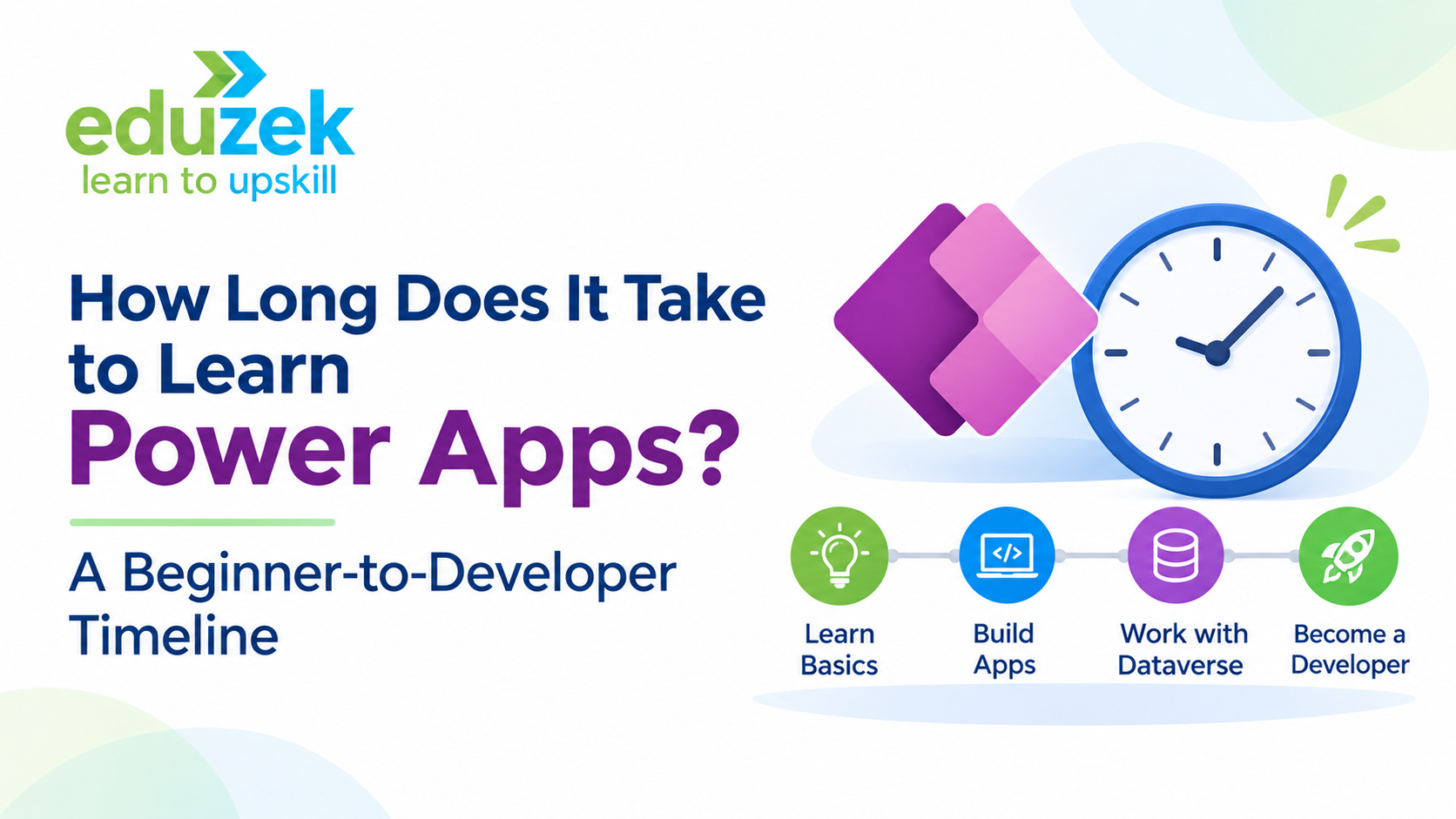
How Long Does It Take to Learn Power Apps? Learning Timeline
How Long Does It Take to Learn Power Apps? A Beginner-to-Developer Timeline
Learning Microsoft Power Apps is an increasingly popular choice for professionals who want to build business applications, automate processes and develop low-code skills without becoming traditional software programmers. From employee management applications and approval systems to inventory tracking and customer service solutions, Power Apps enables users to create applications that address real business needs.
One of the most common questions beginners ask before enrolling in training or starting self-learning is: How long does it take to learn Power Apps?
The answer depends on several factors, including your previous experience with Excel, databases, Microsoft 365, business processes, logical thinking and application development. Someone who already understands data management and business workflows may progress faster than someone starting with no technical background.
Learning basic Power Apps functionality may take relatively less time, but becoming comfortable with building complete applications requires consistent practice. You need to understand Canvas Apps, Model-driven Apps, Power Fx formulas, data sources, Dataverse, integrations and application design.
This guide explains the Power Apps course duration from a beginner's perspective, the stages involved in learning the platform, how much practice each stage requires, and how working professionals can create a realistic learning schedule.
1. Is Power Apps Easy to Learn?
Power Apps is designed to make application development more accessible through a low-code development approach. Instead of writing an application entirely using traditional programming languages, learners can use visual controls, drag-and-drop elements, forms, galleries and formulas to build applications.
This makes Power Apps relatively approachable for beginners, particularly those who already work with Excel, SharePoint or Microsoft 365 tools.
However, easy entry does not mean every concept is equally simple.
Creating a basic form or displaying data in a gallery can be straightforward. Building a complete business application with validation, search, filtering, multiple data sources, permissions, automation and error handling requires a deeper understanding.
What makes Power Apps easier for beginners?
- Visual application development.
- Drag-and-drop controls.
- Prebuilt forms and galleries.
- Integration with Microsoft 365.
- Familiar data sources such as Excel and SharePoint.
- Low-code formulas instead of extensive traditional programming.
- Reusable application components.
- Integration with Power Automate for business workflows.
What can make learning Power Apps challenging?
- Understanding data structures and relationships.
- Learning Power Fx formulas.
- Choosing the right data source.
- Understanding delegation.
- Working with multiple screens and application logic.
- Connecting Power Apps with Power Automate.
- Designing applications that are easy to maintain.
- Troubleshooting errors and data connection issues.
The best approach is to start with simple applications and gradually introduce more complex functionality as your confidence grows.
2. Factors That Affect Power Apps Course Duration
There is no single learning timeline that applies to everyone. The time required to learn Power Apps depends on your background, learning method, practice schedule and the level of application development you want to achieve.
1. Your technical background
Learners with prior experience in Excel, SharePoint, databases, reporting tools or business applications may find some Power Apps concepts easier to understand.
For example, someone familiar with Excel formulas may find it easier to understand Power Fx expressions. Similarly, someone who has worked with SharePoint Lists or databases may already understand columns, records and data structures.
Beginners without this experience can still learn Power Apps, but they may need additional time to build foundational knowledge.
2. Your learning consistency
Studying for a few hours every week consistently is often more effective than studying intensively for a short period and then stopping.
Regular practice helps you remember formulas, understand application logic and become comfortable with the development environment.
3. The learning method you choose
Your learning speed may differ depending on whether you use:
- Free online tutorials.
- Microsoft Learn documentation.
- Recorded courses.
- Live instructor-led training.
- Hands-on assignments.
- Guided project-based learning.
- A combination of different learning methods.
Structured learning can help you avoid spending excessive time searching for the next topic or trying to troubleshoot concepts without guidance.
4. The amount of practical work you complete
Watching tutorials helps you understand concepts, but application development requires hands-on experience.
You should practise creating screens, connecting data, building forms, writing formulas, testing functionality and troubleshooting errors.
The more applications you build independently, the more confident you become.
5. Your learning goal
The time required also depends on what you want to achieve.
| Learning goal | What you need to learn |
| Understand Power Apps | Platform basics, app types and capabilities |
| Build simple applications | Canvas Apps, controls, forms and basic formulas |
| Build business applications | Data sources, Power Fx, validation, filtering and application logic |
| Develop advanced applications | Dataverse, Model-driven Apps, security, integrations and maintainability |
| Become job-ready for Power Platform roles | Practical projects, application development, troubleshooting, business requirements and related Power Platform skills |
Learning enough to create a basic application is different from developing the ability to independently build complete business solutions.
3. Beginner Learning Stage: Understanding Power Apps Fundamentals
The first stage of learning Power Apps involves understanding what the platform does, where it fits into the Microsoft ecosystem and how applications are created.
Beginners should avoid jumping directly into complex projects. Start by understanding the development environment and the basic concepts used throughout Power Apps.
Topics to learn at this stage
What is Microsoft Power Apps?
Understand how Power Apps enables low-code application development and how businesses use it to digitise processes, reduce manual work and create internal applications.
Understanding the Power Platform
Learn the basics of the Microsoft Power Platform ecosystem, including:
- Power Apps – application development.
- Power Automate – workflow automation.
- Power BI – data analysis and reporting.
- Microsoft Dataverse – business data management.
- Power Pages – external-facing business websites.
Understand how these tools can work together to create business solutions.
Exploring the Power Apps environment
Familiarise yourself with the Power Apps interface, application creation options, screens, controls, properties and basic configuration.
Understanding application components
Learn what screens, buttons, text inputs, labels, forms, galleries and other controls do.
Practical exercises for beginners
Start with small activities:
- Create a basic application with two screens.
- Add text labels and buttons.
- Create navigation between screens.
- Add text input controls.
- Display a simple collection of records.
- Change control properties.
- Create a simple form layout.
Learning outcome
By the end of this stage, you should understand how Power Apps applications are structured and feel comfortable navigating the development environment.
4. Canvas Apps Learning Stage: Building Your First Applications
Canvas Apps are often a good starting point for beginners because they provide considerable flexibility in designing application interfaces.
You can position controls, design layouts, create different screens and customise how users interact with data.
This stage is where learners move from understanding the platform to actually building applications.
What should you learn in Canvas Apps?
1. Screens and navigation
Learn how to create multiple screens and organise the application workflow.
For example, an Employee Request Application could contain:
- Home Screen.
- Request Submission Screen.
- My Requests Screen.
- Request Details Screen.
- Admin Screen.
Understand how users move between these screens and how application navigation works.
2. Controls
Learn how to work with commonly used controls:
- Text labels.
- Text input fields.
- Buttons.
- Dropdowns.
- Combo boxes.
- Date pickers.
- Checkboxes.
- Radio buttons.
- Galleries.
- Forms.
- Icons.
Understanding when and how to use controls is essential for building usable applications.
3. Forms
Forms allow users to create, view and edit data records.
Learn how to:
- Create forms.
- Configure form fields.
- Set required fields.
- Validate inputs.
- Submit forms.
- Edit existing records.
- Reset forms.
- Display success and error notifications.
4. Galleries
Galleries are commonly used to display multiple records.
Learn how to:
- Display data in galleries.
- Configure gallery layouts.
- Add controls within galleries.
- Select records.
- Navigate to details screens.
- Filter records.
- Sort records.
- Search records.
5. User interface design
Learn how to create application interfaces that are easy to use.
Understand:
- Layout consistency.
- Screen organisation.
- Navigation clarity.
- Responsive design principles.
- Form usability.
- Appropriate control selection.
- Visual hierarchy.
Practical projects at this stage
You can practise by building:
- Employee Directory App.
- Personal Task Tracker.
- Customer Feedback App.
- Leave Request App.
- Training Registration App.
Learning outcome
You should be able to create a basic Canvas App, design multiple screens, display records, create forms and build simple application workflows.
5. Model-Driven Apps Learning Stage
After developing familiarity with Canvas Apps, learners should understand Model-driven Apps.
Model-driven Apps use a data-first development approach. Instead of designing every screen manually, the application interface is largely generated from the data model, tables, forms, views, relationships and configured components.
Model-driven Apps are particularly useful for applications that involve structured business data and related records.
What should you learn?
Tables
Understand how tables represent business entities such as:
- Employees.
- Customers.
- Departments.
- Projects.
- Tasks.
- Orders.
Forms
Learn how forms are used to create, view and edit records.
Understand how forms can be configured to organise information into sections and tabs.
Views
Learn how views help users access and manage records.
For example:
- Active Employees.
- Pending Requests.
- Open Tickets.
- Completed Projects.
- Records Assigned to Me.
Relationships
Understand how business entities are connected.
For example, one department may have multiple employees, and one employee may submit multiple requests.
Business processes
Understand how applications can support structured business workflows, process stages and record management.
Canvas Apps vs Model-driven Apps at this learning stage
| Canvas Apps | Model-driven Apps |
| Design-first approach | Data-first approach |
| Flexible interface design | Structured interface based on data |
| Greater control over layouts | Interface generated from model and configuration |
| Useful for customised user experiences | Useful for structured business applications |
| Commonly connected to SharePoint or Dataverse | Primarily built around Dataverse |
Learning outcome
You should understand the difference between the two application types, their development approaches and when each is suitable for a business requirement.
6. Dataverse and Data Management Learning Stage
Data management is one of the most important skills in Power Apps development.
Applications need to store information, retrieve records, update data and maintain relationships between different business entities.
Microsoft Dataverse provides a structured data platform for storing and managing business information used by Power Platform applications.
What should you learn about Dataverse?
1. Tables and columns
Understand how tables store information and how columns represent individual attributes.
For example, an Employee table could contain:
| Column | Purpose |
| Employee ID | Unique employee identifier |
| Employee Name | Employee's full name |
| Department | Department information |
| Employee email address | |
| Joining Date | Date the employee joined |
| Designation | Employee's job title |
2. Data types
Learn the purpose of different data types, including:
- Text.
- Number.
- Date and time.
- Currency.
- Choice.
- Yes/No.
- Lookup.
- Other supported data types.
Selecting appropriate data types helps maintain data quality and makes applications easier to develop.
3. Relationships
Understand how tables are related to each other.
Common relationship concepts include:
- One-to-many.
- Many-to-one.
- Many-to-many.
For example, a department can have many employees, while each employee may belong to a department.
4. Data modelling
Learn how to organise business information into logical tables and relationships.
A good data model reduces unnecessary duplication, makes relationships easier to understand and supports application functionality.
5. Data management
Understand how data is created, retrieved, updated, maintained and managed within applications.
Practical exercise
Build a simple Employee Management data model with:
- Employee table.
- Department table.
- Designation information.
- Employee status.
- Joining date.
- Related records.
Connect this model to a Power Apps application and practise displaying and managing employee information.
Learning outcome
You should understand how business data is structured, how tables relate to each other and how Dataverse supports application development.
7. Power Fx Learning Stage: Developing Application Logic
Power Fx is the formula language used in Power Apps to implement application logic.
Although Power Apps is a low-code platform, formulas are essential for building applications that behave according to business requirements.
The time required to become comfortable with Power Fx depends on your previous experience with formulas, logical expressions and data manipulation.
Basic formulas to learn
If()
Used to evaluate conditions and return different results based on whether a condition is true or false.
Example:
If(
Value(txtAge.Text) >= 18,
"Eligible",
"Not Eligible"
)
Navigate()
Used to navigate between screens.
Navigate(scrHome)
Set()
Used to create or update a global variable.
Set(varUserName, User().FullName)
Filter()
Used to retrieve records based on conditions.
Filter(
EmployeeList,
Department = "IT"
)
LookUp()
Used to retrieve a specific record that matches a condition.
LookUp(
EmployeeList,
EmployeeID = 101
)
Notify()
Used to display notifications to users.
Notify(
"Request submitted successfully",
NotificationType.Success
)
Patch()
Used to create or update records.
Patch(
EmployeeList,
Defaults(EmployeeList),
{
EmployeeName: txtEmployeeName.Text,
Department: ddDepartment.Selected.Value
}
)
Note: Formula syntax and field references can vary depending on the connected data source and its column types.
What else should you learn?
As you progress, practise:
- Conditional expressions.
- Variables.
- Collections.
- Data filtering.
- Searching.
- Sorting.
- Record manipulation.
- Form validation.
- Error handling.
- Data updates.
- Delegation considerations.
Why practice matters
Reading formulas alone is not enough.
Try to write formulas independently, modify them and understand why they work.
For example, instead of only learning how to filter employee records, practise filtering employees by department, status, location and joining date.
Learning outcome
You should be able to implement basic application logic, create conditions, manipulate data, navigate screens and solve common application requirements using Power Fx.
8. Integration and Automation Learning Stage
Power Apps becomes more useful when it connects with other business systems and automates processes.
This stage involves learning how to connect applications to data sources, understand connectors and integrate Power Apps with Power Automate.
1. Connecting Power Apps to data sources
Learn how to connect applications with commonly used data sources such as:
- SharePoint Lists.
- Microsoft Excel.
- Microsoft Dataverse.
- SQL databases.
- Microsoft 365 services.
- Other supported connectors.
Understand how data is retrieved, displayed, submitted and updated.
2. SharePoint integration
SharePoint is commonly used as a data source for internal business applications.
Practise:
- Connecting to SharePoint Lists.
- Displaying SharePoint records.
- Creating forms.
- Updating records.
- Searching and filtering.
- Managing data connections.
- Understanding delegation limitations.
3. Microsoft Excel integration
Learn how Power Apps can connect to Excel tables and use them as data sources for suitable application scenarios.
Understand the importance of properly formatted tables, data structure and the limitations of Excel when used as an application data source.
4. Power Automate integration
Power Automate enables applications to trigger workflows and automate business processes.
For example, when an employee submits a request through Power Apps, a flow can:
- Send an email notification.
- Notify a manager.
- Initiate an approval process.
- Update a record.
- Send a reminder.
- Perform additional actions using connected services.
Example: Employee Leave Request Application
A user submits a leave request through Power Apps.
The application stores the request in a connected data source. Power Automate can then notify the manager, initiate approval and update the request status according to the workflow.
This type of integration helps learners understand how applications and automation work together to solve business problems.
Learning outcome
You should understand how Power Apps connects to different data sources and how Power Automate can extend applications through automated workflows.
9. How Much Time Is Needed for Practical Projects?
Practical projects are an important part of the learning process because they help you apply concepts rather than simply understand them theoretically.
The time needed to complete a project depends on its complexity, your experience and the amount of functionality you implement.
A simple application with a few screens may require significantly less effort than a business application involving multiple data sources, relationships, approval workflows and security requirements.
Project 1: Employee Directory App
Difficulty: Beginner
Features
- Display employee records.
- Search employees.
- Filter employees by department.
- View employee details.
- Create or update records.
Skills practised
- Canvas Apps.
- Galleries.
- Search.
- Filter formulas.
- Forms.
- Data connections.
Project 2: Employee Leave Management App
Difficulty: Beginner to intermediate
Features
- Submit leave requests.
- Select leave dates.
- Display submitted requests.
- Track request status.
- View approved and pending requests.
Skills practised
- Forms.
- Date pickers.
- Dropdowns.
- Power Fx.
- Data validation.
- SharePoint or Dataverse integration.
Project 3: Inventory Management App
Difficulty: Intermediate
Features
- Add inventory items.
- Update stock quantity.
- Display available inventory.
- Search products.
- Filter by category.
- Track stock status.
Skills practised
- Data management.
- Galleries.
- Forms.
- Filtering.
- Conditional formatting.
- Application logic.
Project 4: Helpdesk Ticket Management App
Difficulty: Intermediate
Features
- Create support tickets.
- Assign tickets.
- Track ticket status.
- Filter by priority.
- Display open and closed tickets.
- View ticket details.
Skills practised
- Application design.
- Data modelling.
- Forms.
- Galleries.
- Power Fx.
- Business workflows.
Project 5: Employee Onboarding Application
Difficulty: Intermediate to advanced
Features
- Employee onboarding records.
- Document or information checklist.
- Task tracking.
- Department-based onboarding activities.
- Status tracking.
- Automated notifications.
Skills practised
- Data modelling.
- Multiple screens.
- Application logic.
- Data relationships.
- Power Automate.
- Business process automation.
Project 6: Expense Reimbursement Application
Difficulty: Intermediate to advanced
Features
- Submit expense requests.
- Enter expense details.
- Select expense categories.
- Track reimbursement status.
- Support approval workflows.
- Display request history.
Skills practised
- Form validation.
- Data management.
- Power Fx.
- Power Automate.
- Approval integration.
- Application testing.
How projects help accelerate learning
Projects help you understand the relationship between individual Power Apps concepts.
You begin to see how:
- Screens support workflows.
- Controls collect user information.
- Forms manage data.
- Galleries display records.
- Formulas implement business logic.
- Data sources store information.
- Power Automate handles automation.
- Security and permissions affect application access.
This practical understanding is particularly important for learners who want to progress beyond basic application creation.
10. Power Apps Learning Timeline: From Beginner to Developer
The following is an illustrative learning roadmap rather than a fixed course duration. The actual time required depends on your previous knowledge, practice hours, learning pace and the complexity of the applications you build.
| Learning stage | Topics covered | Learning milestone |
| Stage 1: Fundamentals | Power Platform, Power Apps environment, basic controls | Understand the platform and create a simple app |
| Stage 2: Canvas Apps | Screens, navigation, controls, forms and galleries | Build basic interactive applications |
| Stage 3: Data sources | SharePoint, Excel and data connections | Connect apps to data and manage records |
| Stage 4: Power Fx | Conditions, variables, filtering, searching and data operations | Implement application logic |
| Stage 5: Dataverse | Tables, columns, relationships and data modelling | Build structured data-driven applications |
| Stage 6: Model-driven Apps | Tables, forms, views and application configuration | Understand data-first business application development |
| Stage 7: Integration | Power Automate, connectors, notifications and approvals | Connect applications with automated workflows |
| Stage 8: Advanced application development | Security, testing, troubleshooting, performance and deployment | Develop more complete business applications |
| Stage 9: Project development | Practical assignments and end-to-end applications | Apply concepts independently |
What does the progression look like?
Your Power Apps learning journey
Beginner
Learn platform basics, controls, screens, navigation and simple applications.
Application Builder
Develop Canvas Apps, forms, galleries, data connections and basic formulas.
Intermediate Developer
Learn Dataverse, data modelling, Model-driven Apps, integration and automation.
Application Developer
Build complete business applications, implement business logic, troubleshoot, test and improve solutions.
The important thing is not how quickly you move through these stages, but whether you can apply the concepts independently.
11. How Long Does It Take to Learn Power Apps While Working Full-Time?
Many learners interested in Power Apps are working professionals who want to upskill without leaving their jobs.
Learning while working full-time is possible if you create a realistic schedule and consistently dedicate time to practice.
The challenge is not necessarily finding large amounts of free time. It is using the available time effectively.
Example weekly learning schedules
These are sample schedules, not prescribed course timelines.
Option 1: Short weekday sessions
| Day | Suggested activity | Example time |
| Monday | Learn a new concept | 45 minutes |
| Tuesday | Practise the concept | 45 minutes |
| Wednesday | Formula or application exercise | 45 minutes |
| Thursday | Continue practical work | 45 minutes |
| Friday | Review notes and troubleshoot | 30 minutes |
| Saturday | Build or extend a project | 2 hours |
| Sunday | Review and plan next week | 1 hour |
This approach works well for learners who prefer small, consistent study sessions.
Option 2: Weekend-focused learning
| Day | Suggested activity | Example time |
| Monday–Friday | Brief revision or optional practice | 15–30 minutes |
| Saturday | Training session and hands-on exercises | 2–3 hours |
| Sunday | Project development and revision | 2–3 hours |
This approach may suit professionals with busy weekday schedules.
Option 3: Flexible schedule
You can also divide your learning into smaller blocks based on your availability.
For example:
- Learn one concept.
- Practise it in Power Apps.
- Build a small feature.
- Review mistakes.
- Repeat the process.
Even if your schedule changes, maintaining a regular learning habit can help you progress.
12. Self-Paced vs Instructor-Led Power Apps Learning
Your learning method can influence how quickly you understand Power Apps and how confidently you apply the concepts.
Both self-paced and instructor-led learning have advantages. The right choice depends on your schedule, learning preferences, experience and need for guidance.
Self-paced learning
Self-paced learning allows you to study according to your own schedule.
You can use tutorials, documentation, recorded courses and practice exercises to learn Power Apps at your preferred speed.
Advantages
- Flexibility to study whenever you have time.
- Ability to revisit lessons.
- Suitable for learners with unpredictable schedules.
- Opportunity to explore topics independently.
- Can be combined with free learning resources.
Limitations
- You need to create your own learning roadmap.
- It may take time to identify the right resources.
- Troubleshooting errors may be difficult.
- You may not receive feedback on your applications.
- Maintaining consistency requires self-discipline.
- You may skip important concepts without realising it.
Instructor-led learning
Instructor-led training follows a structured learning approach with sessions guided by a trainer.
Depending on the training format, learners may have access to demonstrations, explanations, exercises, discussions and doubt-resolution support.
Advantages
- Structured learning progression.
- Guidance from an instructor.
- Opportunity to ask questions.
- Assistance in understanding technical concepts.
- Guided practical exercises.
- Better visibility into what to learn next.
- Support in troubleshooting learning challenges.
Limitations
- Sessions may follow a scheduled timetable.
- Learners need to manage their availability.
- Progress may depend partly on participation and practice outside sessions.
- The quality of learning depends on the curriculum, instructor and practical training approach.
Self-paced vs instructor-led learning comparison
| Factor | Self-paced | Instructor-led |
| Schedule | Flexible | Structured sessions |
| Learning pace | Learner-controlled | Guided pace |
| Doubt resolution | Independent research or available support | Direct interaction, depending on training format |
| Curriculum | Learner selects resources | Organised learning sequence |
| Practical exercises | Self-managed | May include guided exercises |
| Accountability | Mostly self-driven | Structured participation |
| Suitable for | Independent learners | Learners who prefer guidance |
| Troubleshooting | Self-research | Trainer guidance where available |
For working professionals, a combination of structured training and independent practice can be useful. Training sessions help explain concepts, while personal practice helps strengthen the ability to implement them.
13. How to Create a Realistic Power Apps Study Plan
A practical study plan should focus on learning concepts, practising them and building applications rather than simply completing videos or lessons.
You can organise your learning around weekly objectives instead of setting an arbitrary deadline for becoming a developer.
Step 1: Set your learning goal
Decide what you want to achieve.
For example:
- Understand Power Apps fundamentals.
- Create simple business applications.
- Learn Canvas Apps development.
- Work with SharePoint data sources.
- Learn Power Fx.
- Understand Dataverse.
- Develop applications using Model-driven Apps.
- Integrate Power Apps with Power Automate.
- Build a portfolio of practical projects.
Having a specific goal helps you select relevant learning topics.
Step 2: Divide the curriculum into manageable topics
Avoid trying to learn everything at once.
Break the learning process into sections such as:
- Power Platform fundamentals.
- Canvas Apps.
- Controls, forms and galleries.
- Data connections.
- Power Fx.
- Dataverse.
- Model-driven Apps.
- Power Automate.
- Security.
- Testing and deployment.
- Practical projects.
Step 3: Follow the learn-practise-build method
For every topic, use this three-step process.
Learn: Understand the concept through training, documentation or a demonstration.
Practise: Repeat the concept independently using a small exercise.
Build: Apply the concept to a real application or project.
For example, after learning filtering in Power Apps:
- Learn how the
Filter()function works. - Practise filtering a list of employee records.
- Build department and status filters in an Employee Management App.
This method helps transform theoretical knowledge into practical skills.
Step 4: Maintain a practice notebook
Record:
- Formulas you have learned.
- Common errors.
- Solutions to troubleshooting problems.
- Application design decisions.
- Data source limitations.
- Concepts that need revision.
- Project ideas.
This notebook becomes a useful reference when building more complex applications.
Step 5: Review your progress regularly
At the end of each learning period, evaluate what you can build without following a tutorial.
Ask yourself:
- Can I create screens independently?
- Can I build forms and galleries?
- Can I connect a data source?
- Can I create basic formulas?
- Can I filter and search records?
- Can I update and submit data?
- Can I troubleshoot common errors?
- Can I explain how my application works?
Your answers will help you identify the topics you need to practise further.
14. How to Assess Your Readiness for Developer-Level Power Apps Projects
Completing lessons or watching tutorials does not necessarily mean you are ready to develop applications independently.
A better way to assess your progress is to check whether you can solve application development problems without relying entirely on step-by-step instructions.
Beginner readiness checklist
You should be able to:
- Navigate the Power Apps environment.
- Create a basic Canvas App.
- Add screens and controls.
- Configure buttons and navigation.
- Create basic forms.
- Display records in galleries.
- Connect to a simple data source.
Intermediate readiness checklist
You should be able to:
- Build a multi-screen application.
- Create forms for adding and editing records.
- Implement search and filtering.
- Use basic Power Fx formulas independently.
- Work with variables and collections where appropriate.
- Connect applications to SharePoint or Dataverse.
- Implement basic validation.
- Troubleshoot common application errors.
Application developer readiness checklist
You should be able to:
- Understand business requirements.
- Select an appropriate application type.
- Design a suitable data structure.
- Build applications with multiple screens and workflows.
- Implement business logic using Power Fx.
- Understand Dataverse tables and relationships.
- Integrate applications with Power Automate.
- Understand application permissions and security.
- Test applications systematically.
- Identify performance and delegation considerations.
- Explain your application architecture.
- Build a practical application from requirements without following a complete tutorial.
If you can perform most of these tasks independently, you are progressing toward application developer-level skills. You may still need to strengthen advanced topics through more complex projects and real-world development experience.
15. How Structured Power Apps Training Can Help You Learn Faster
Self-learning is a useful way to explore Power Apps, but learners sometimes struggle to determine the correct learning sequence.
They may start with Canvas Apps, jump into Power Fx, move to Dataverse, watch a Power Automate tutorial and then return to basic concepts because the foundation is incomplete.
Structured training can help organise the learning process.
A structured training approach can provide
1. A clear learning roadmap
Understand what to learn first, which concepts depend on earlier topics and how to progress from fundamentals to application development.
2. Organised curriculum
Learn Power Apps topics in a logical sequence instead of searching for unrelated tutorials.
3. Practical application development
Apply the concepts through exercises and application-building activities rather than limiting learning to theory.
4. Trainer guidance
Where included in the training format, instructor guidance can help clarify concepts, explain formulas and support learners when they encounter difficulties.
5. Business-oriented learning
Learn how application development concepts relate to real business requirements, processes and workflows.
6. Support for working professionals
A suitable learning format can help professionals organise their upskilling around their existing work responsibilities.
If you want to explore a structured learning option, you can check out Power Apps and Power Automate training in India to learn more about the training pathway.
Working professionals who want to learn alongside their job can also explore Power Apps courses online for working professionals.
Before enrolling, review the curriculum, practical exercises, training format, trainer support, project coverage and schedule to determine whether it matches your learning requirements.
16. How to Move from Learning Power Apps to Building Real Applications
Once you understand the fundamentals, the next step is to apply them to progressively more complex business requirements.
Instead of building only tutorial-based applications, practise translating business problems into application features.
For example, consider a company that manages employee requests through emails and spreadsheets.
You could develop an application that allows employees to:
- Submit requests.
- View their submitted requests.
- Check request status.
- Edit requests where permitted.
- Receive notifications.
- Track approvals.
You would need to understand the business requirement, identify the data fields, select a data source, design the screens, implement formulas, create workflows and test the application.
This process develops a more complete understanding of application development.
Skills to develop beyond the basics
As you progress, focus on:
- Requirement analysis.
- Application architecture.
- Data modelling.
- Power Fx.
- Canvas Apps design.
- Model-driven Apps.
- Dataverse.
- SharePoint integration.
- Power Automate.
- Security and permissions.
- Application testing.
- Troubleshooting.
- Performance optimisation.
- Application lifecycle management.
These skills help you move from building simple low-code applications to developing maintainable business solutions.
Conclusion
The time required to learn Power Apps depends on your previous experience, learning pace, available study hours and the level of application development you want to achieve.
Beginners can start by learning the Power Apps environment, basic controls, screens, forms and galleries. As they progress, they should develop skills in Canvas Apps, Power Fx, data connections, Dataverse, Model-driven Apps and Power Automate integration.
Building practical applications is one of the most important parts of the learning journey. Projects such as Employee Management Apps, Leave Management Systems, Inventory Applications and Helpdesk Solutions help learners understand how different concepts work together to solve business problems.
For working professionals, learning Power Apps alongside a full-time job is achievable with a realistic study schedule, regular practice and a structured learning approach.
Rather than focusing only on how quickly you can complete a course, focus on what you can build independently. Your ability to understand requirements, design applications, connect data, implement business logic, troubleshoot errors and develop complete solutions is a more meaningful measure of progress.
With consistent practice and a clear learning roadmap, you can progress from a beginner to someone capable of developing practical business applications using Microsoft Power Apps.
Frequently Asked Questions (FAQs)
1. How long does it take to learn Power Apps?
The learning time depends on your technical background, previous experience with Microsoft tools, study schedule and learning goals. Basic application development may require less learning effort than developing complete applications involving Dataverse, integrations, automation, security and advanced application logic.
2. Can I learn Power Apps in 30 days?
You may be able to learn the fundamentals and build simple applications within a focused learning period, depending on your background and the time you dedicate to practice. However, mastering application development, integrations, data modelling and advanced concepts generally requires continued learning and hands-on experience.
3. Is Power Apps easy for beginners?
Power Apps is relatively beginner-friendly because it uses visual development tools, prebuilt controls, forms, galleries and low-code formulas. Beginners can start without extensive programming knowledge, although understanding logic, data structures and Power Fx becomes increasingly important as applications become more complex.
4. Can I learn Power Apps without coding experience?
Yes. Power Apps is designed for low-code development, so you do not need to be an experienced programmer to begin. You can create basic applications using visual controls and gradually learn Power Fx to implement more advanced functionality.
5. How many hours should I study Power Apps per day?
There is no mandatory daily study requirement. A consistent schedule that combines learning, practical exercises and project work is more useful than focusing only on the number of hours. You can organise your study around weekday sessions, weekend practice or a combination based on your availability.
6. Can working professionals learn Power Apps?
Yes. Working professionals can learn Power Apps alongside their jobs by following a realistic schedule. Short weekday study sessions, weekend practice and structured training can help them maintain consistency without requiring them to leave their current employment.
7. What should I learn first in Power Apps?
Start with Power Platform fundamentals and the Power Apps environment. Then learn Canvas Apps, screens, controls, forms, galleries, data connections and basic Power Fx formulas. After developing a foundation, progress to Dataverse, Model-driven Apps, Power Automate and more advanced application development.
8. Is Power Fx difficult to learn?
Power Fx is relatively approachable for beginners, especially those familiar with Excel formulas. Basic functions such as If(), Filter(), LookUp(), Navigate() and Set() can be learned through practice. More advanced data operations, application logic and troubleshooting require additional experience.
9. Do I need to learn Dataverse to become a Power Apps developer?
Dataverse is an important skill for Power Apps developers, particularly those building structured business applications or working with Model-driven Apps. However, beginners can start with simpler data sources such as SharePoint and gradually progress to Dataverse.
10. Is Power Automate necessary for learning Power Apps?
Power Automate is not necessary for every Power Apps application, but learning it is valuable. It enables developers to automate approvals, notifications, business processes, data updates and other workflows that extend the functionality of Power Apps.
11. How long does it take to become a Power Apps developer?
There is no fixed timeline. Becoming a developer involves more than learning the platform's features. You need practical experience with application design, data modelling, Power Fx, integrations, troubleshooting, testing and business requirements. Your progress depends on your learning consistency and project experience.
12. Is instructor-led Power Apps training better than self-learning?
Both approaches have advantages. Self-learning offers flexibility, while instructor-led training can provide a structured curriculum, guided explanations and doubt resolution, depending on the program. A combination of structured training and independent project practice can be effective.
13. What projects should I build while learning Power Apps?
Start with simple projects such as Employee Directory Apps and Task Trackers. Progress to Leave Management, Inventory Management, Expense Reimbursement, Helpdesk Ticket Management and Employee Onboarding applications. Choose projects that help you practise forms, galleries, data sources, formulas, workflows and integrations.
14. How do I know when I am ready for advanced Power Apps projects?
You are ready to progress when you can build multi-screen applications independently, connect data sources, implement formulas, create forms and galleries, apply search and filtering, troubleshoot errors and understand basic application design. Advanced projects will further strengthen your skills in Dataverse, security, integration and application architecture.
15. Can structured Power Apps training reduce learning time?
Structured training can help organise topics, reduce confusion about what to learn next and provide guidance when you encounter difficulties. However, your progress also depends on your participation, independent practice and ability to apply concepts to projects.
Related Course
Microsoft PowerApps & Power Automate
₹20000 ₹16000
Related Articles
November 26, 2026
November 24, 2026